> ## Documentation Index
> Fetch the complete documentation index at: https://docs.listenlabs.ai/llms.txt
> Use this file to discover all available pages before exploring further.
# Paying your Self-Recruited Participant Incentives
Self recruiting requires a ton of manual payment processing to give incentives and rewards to participants. That's why we've partnered with Tremendous to make compensating your respondents easier than ever.
Our Incentives feature allows you to set an incentive amount within your study, collect participant emails securely, and send digital rewards automatically once fielding is complete — all within our platform. This article will cover how to configure your study for incentives, loading an incentive balance into your account, what a participant will receive upon study completion, and some FAQs.
Listen Labs will continue to handle incentive payments for studies we recruit. This feature applies only when you're sharing your own study link and managing participants directly.
## 1. Setting Up Incentives in Your Study
1. **Open or create your study** in Listen Labs.
2. Scroll down to the **Interview End** section.
3. Toggle on **"Reward your Respondents"** to enable incentives.
4. Set your **incentive amount** (e.g., `$50`), taking into consideration how long the study is and what is asked of a participant (e.g., video on vs. audio only) — higher incentives yield higher completion rates and faster fielding times.
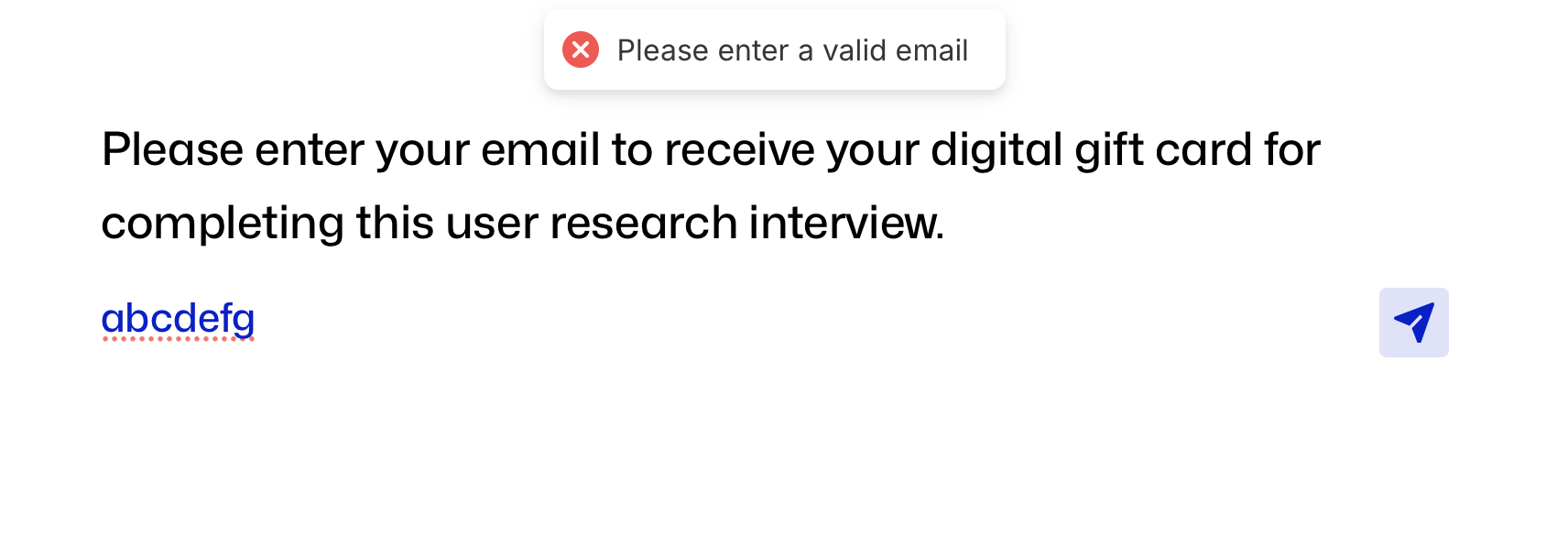
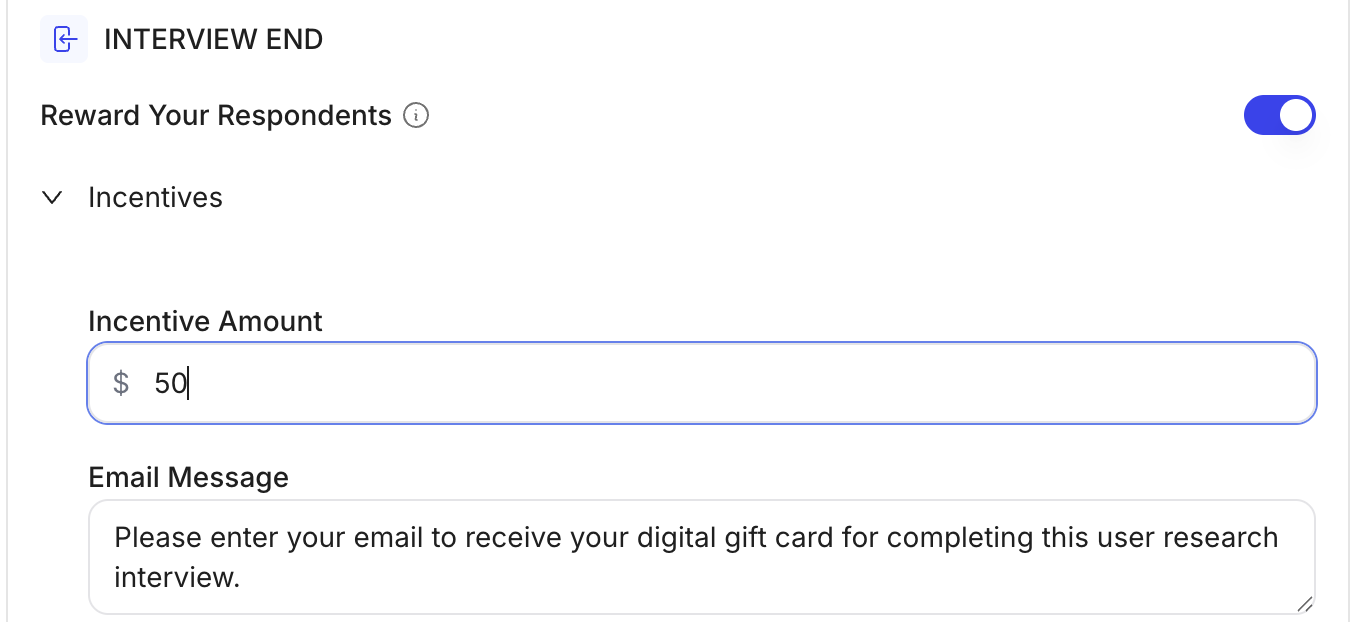 5. **Customize the email entry question text** — e.g., *"Please enter your email to receive your digital gift card for completing this interview"*
* Each participant provides the email address where their digital gift card will be sent.
* Email input is **validated**, so respondents must enter a valid address before submitting.
5. **Customize the email entry question text** — e.g., *"Please enter your email to receive your digital gift card for completing this interview"*
* Each participant provides the email address where their digital gift card will be sent.
* Email input is **validated**, so respondents must enter a valid address before submitting.
 6. You can also enable and edit your incentive using the Create Chat. For example, you could prompt "enable a \$50 incentive".
## 2. Loading an Incentive Balance
Before paying out the incentives at the close of your study, you'll need to load funds into your Listen Labs account.
* Each organization has an **incentive balance** that is drawn down as payments are made.
* You can **prepay** to load a balance, or do this **at the time of incentive payout**:
### To prepay:
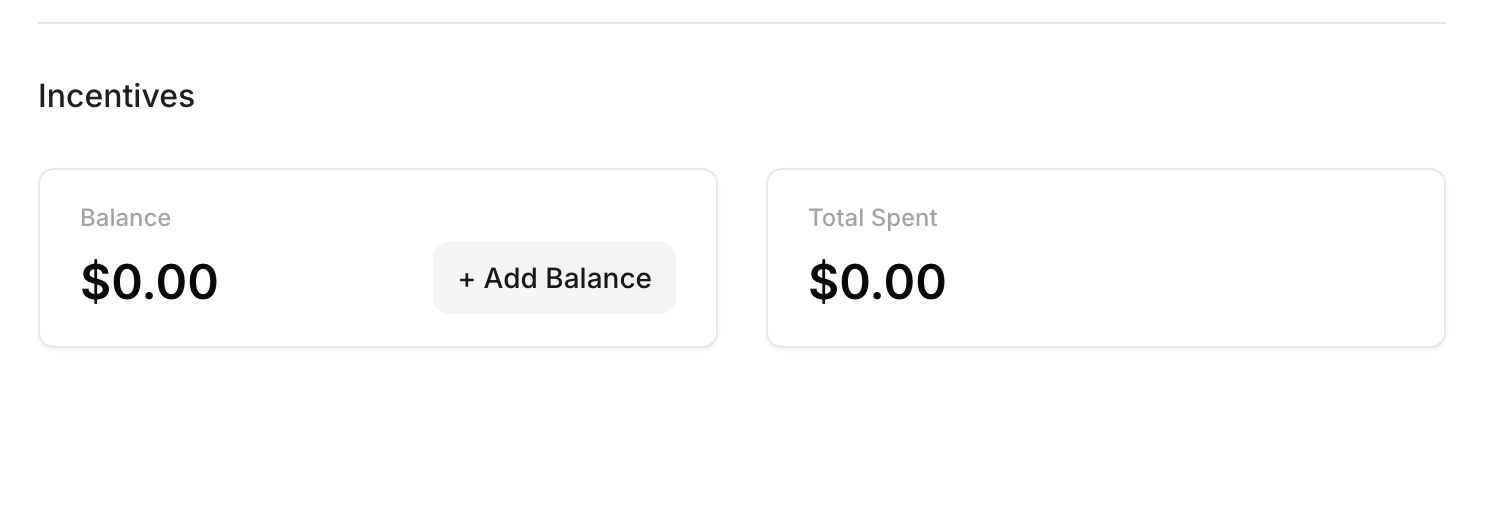
1. Go to your "Usage & Billing" page on the left side of your Dashboard.
2. Click **+ Add Balance** and enter the amount you would like to load.
6. You can also enable and edit your incentive using the Create Chat. For example, you could prompt "enable a \$50 incentive".
## 2. Loading an Incentive Balance
Before paying out the incentives at the close of your study, you'll need to load funds into your Listen Labs account.
* Each organization has an **incentive balance** that is drawn down as payments are made.
* You can **prepay** to load a balance, or do this **at the time of incentive payout**:
### To prepay:
1. Go to your "Usage & Billing" page on the left side of your Dashboard.
2. Click **+ Add Balance** and enter the amount you would like to load.
 3. Click **Pay**. You will be redirected to a Stripe page, where you can complete the payment.
### To add funds at the time of incentive payout:
1. Click **"Pay Incentive"**.
2. Click **"Insufficient Funds - Add Funds Here"**
3. Click **Pay**. You will be redirected to a Stripe page, where you can complete the payment.
### To add funds at the time of incentive payout:
1. Click **"Pay Incentive"**.
2. Click **"Insufficient Funds - Add Funds Here"**
 3. This will redirect you to your Usage & Billing page, where you can follow the same steps as above to prepay.
Once your balance is set, you'll see it reflected on your Usage & Billing page.
## 3. Paying Participants
When responses have come in:
1. Go to your study's **Responses** tab.
2. You'll see a column labeled **Incentive Status** showing which participants are eligible for payment and which have already been paid.
3. Click **Pay Incentive** to send the digital gift card.
* You can pay participants one at a time by clicking "Pay Incentive" in their respective row.
* Or, you can also pay in bulk by **selecting multiple participants** and pressing "Pay Incentives".
3. This will redirect you to your Usage & Billing page, where you can follow the same steps as above to prepay.
Once your balance is set, you'll see it reflected on your Usage & Billing page.
## 3. Paying Participants
When responses have come in:
1. Go to your study's **Responses** tab.
2. You'll see a column labeled **Incentive Status** showing which participants are eligible for payment and which have already been paid.
3. Click **Pay Incentive** to send the digital gift card.
* You can pay participants one at a time by clicking "Pay Incentive" in their respective row.
* Or, you can also pay in bulk by **selecting multiple participants** and pressing "Pay Incentives".
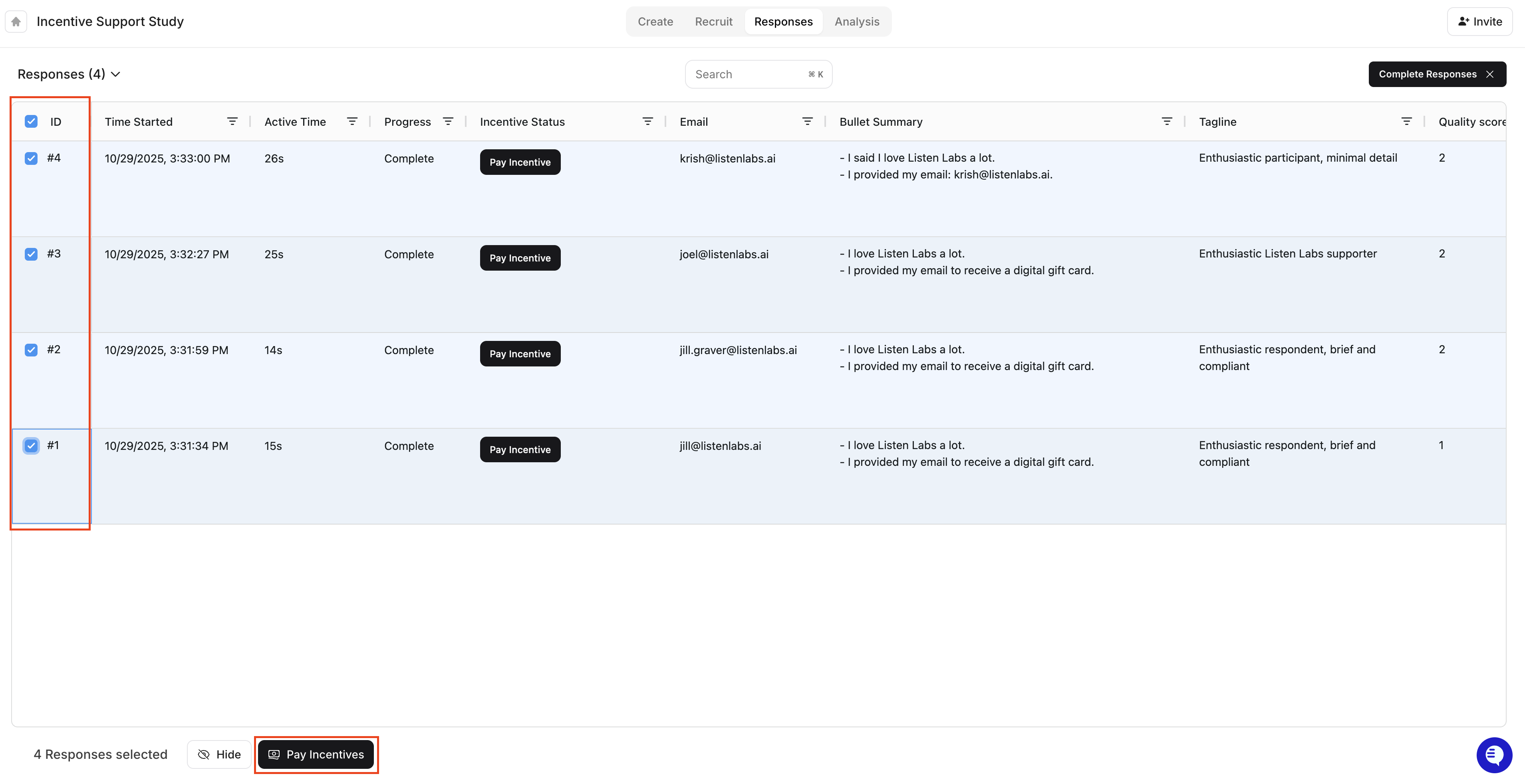 4. Once paid, the incentive status will update automatically, and the participant will receive their reward via email.
## 4. What Participants Receive
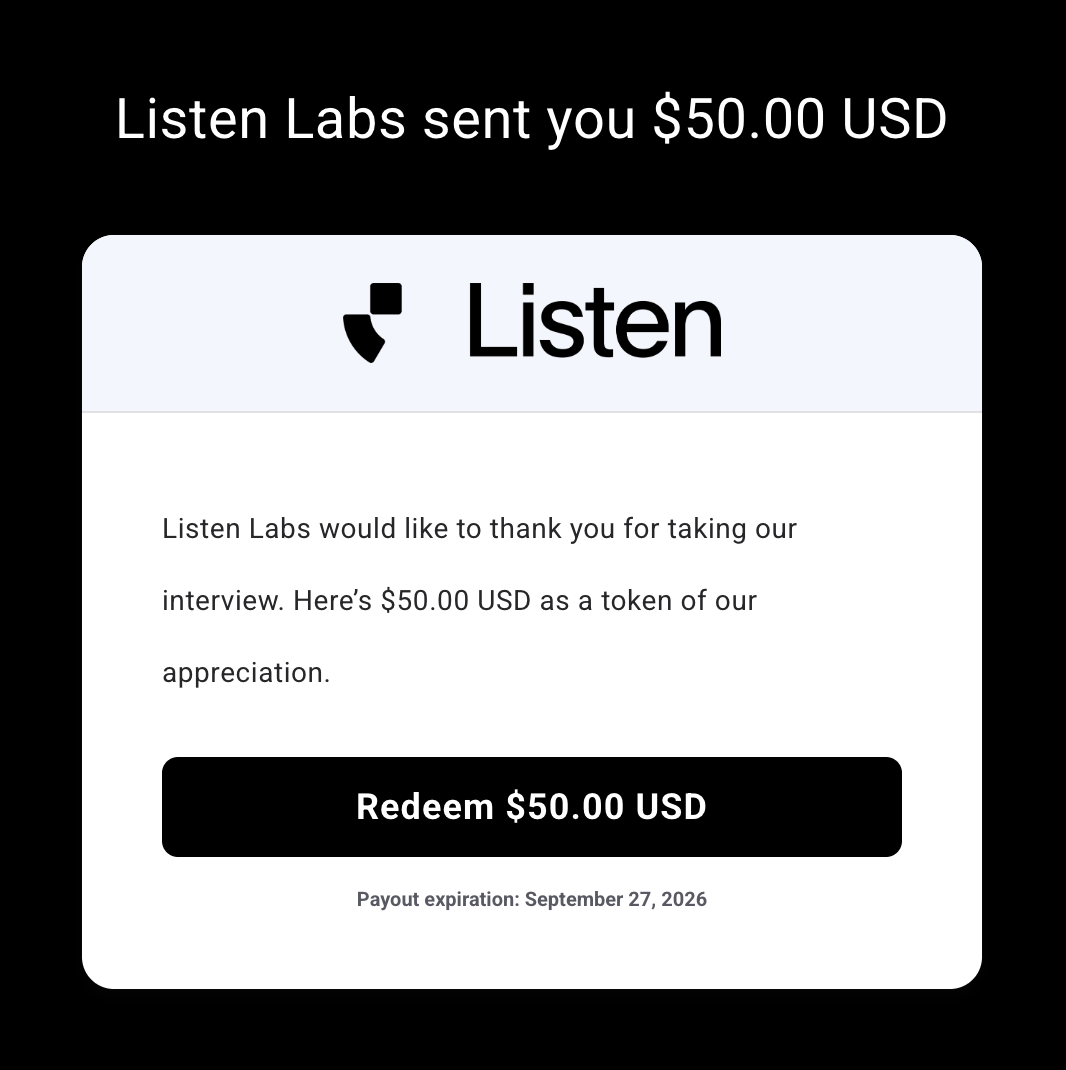
Participants will get an **email from Tremendous**, our trusted payout partner, with their digital reward.
4. Once paid, the incentive status will update automatically, and the participant will receive their reward via email.
## 4. What Participants Receive
Participants will get an **email from Tremendous**, our trusted payout partner, with their digital reward.
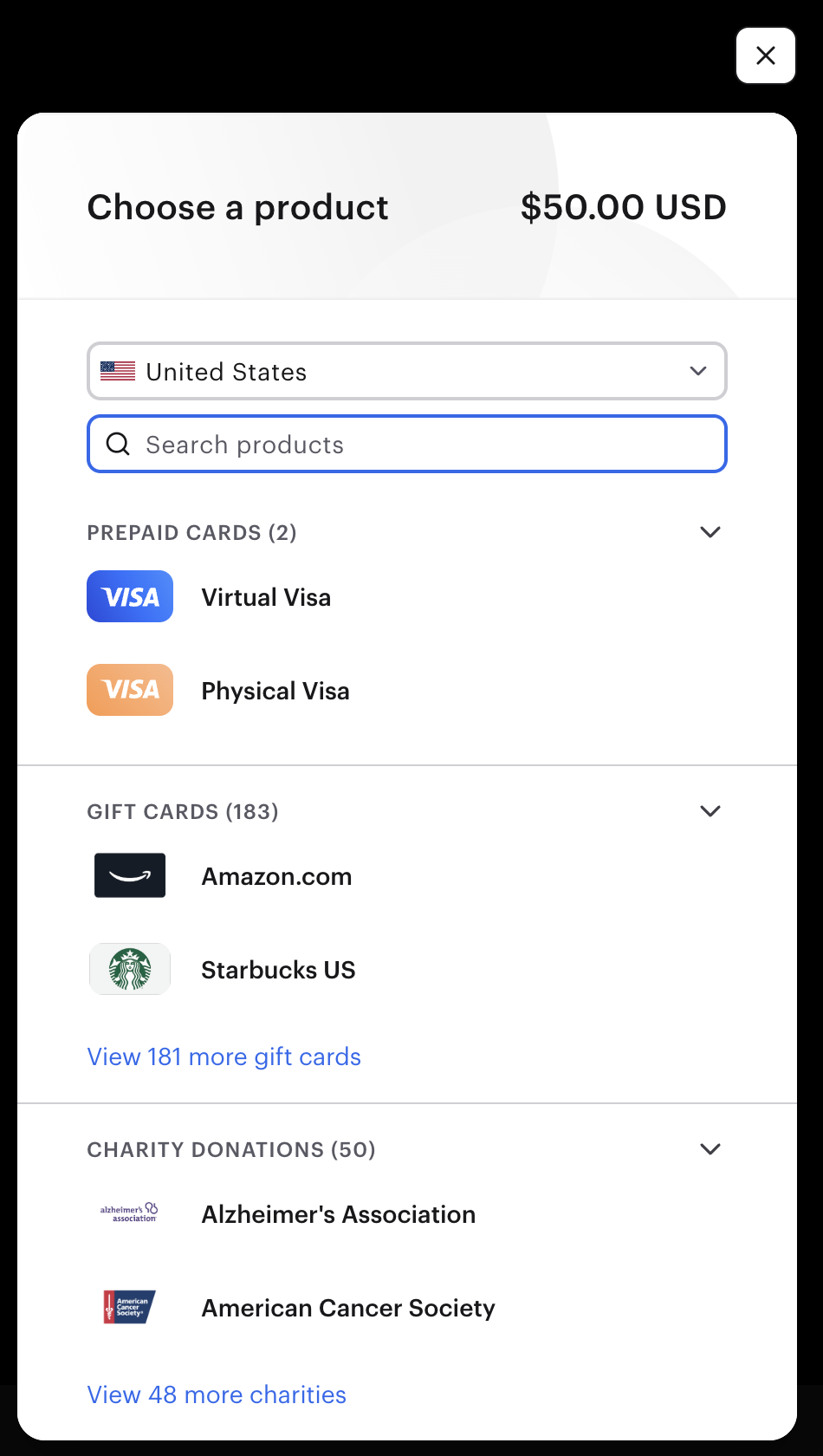
 They can choose from:
* Thousands of **gift card options** (e.g., Amazon, Starbucks, Kroger etc.), varying by region.
* Prepaid Visa card
* Donating the amount to charities
They can choose from:
* Thousands of **gift card options** (e.g., Amazon, Starbucks, Kroger etc.), varying by region.
* Prepaid Visa card
* Donating the amount to charities
 ## 5. FAQs
No — once a participant has been marked "Paid," that entry cannot be paid again.
No — the system will prevent you from paying participants that did not complete the entire study.
Payments are typically processed instantly and reach participants within minutes.
Yes, you can set a response limit on your Recruit tab within the Listen platform and thereby limit how many incentives you will end up paying out.
Yes. To customize the incentive email, reach out to your Listen Labs contact for support, or email [support@listenlabs.ai](mailto:support@listenlabs.ai).
The funds cannot be easily recovered or reissued. Please remind participants to double-check their email before submitting.
No, Listen Labs will continue to handle incentive payments for studies we recruit. This feature applies only when you're sharing your own study link and managing participants directly.
## 5. FAQs
No — once a participant has been marked "Paid," that entry cannot be paid again.
No — the system will prevent you from paying participants that did not complete the entire study.
Payments are typically processed instantly and reach participants within minutes.
Yes, you can set a response limit on your Recruit tab within the Listen platform and thereby limit how many incentives you will end up paying out.
Yes. To customize the incentive email, reach out to your Listen Labs contact for support, or email [support@listenlabs.ai](mailto:support@listenlabs.ai).
The funds cannot be easily recovered or reissued. Please remind participants to double-check their email before submitting.
No, Listen Labs will continue to handle incentive payments for studies we recruit. This feature applies only when you're sharing your own study link and managing participants directly.