

Key Concepts Explained
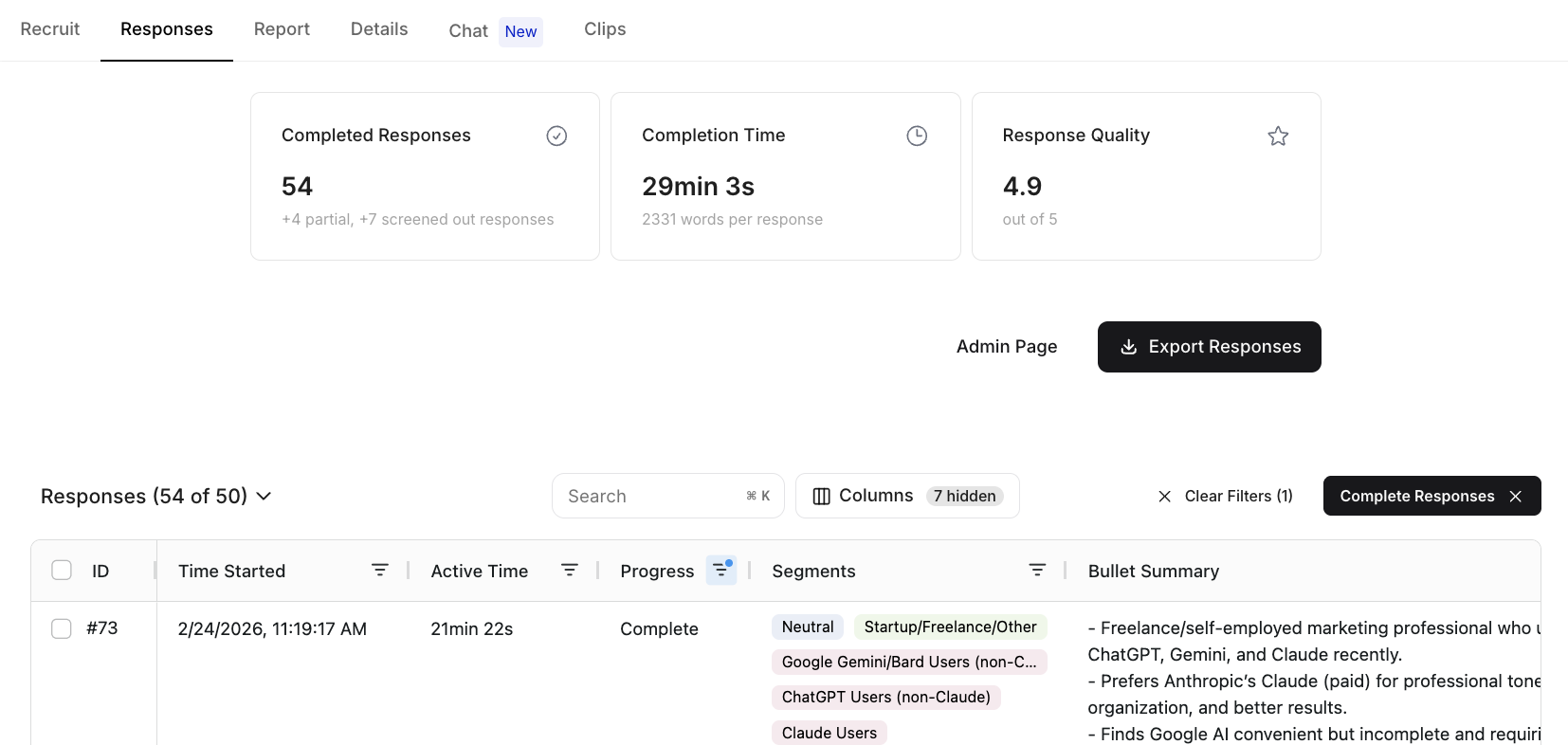
Responses Tab: Your real-time dashboard for monitoring all incoming interview data. Shows participant-level data including full transcripts, screener responses, and completion status as interviews arrive. Transcript: The complete text of each interview conversation — AI Interviewer questions and participant answers — automatically generated from audio or video recordings. Transcripts are used by all AI analysis features. Video Recording: A recording of the participant’s interview session. Click into any response to watch participants respond and understand non-verbal cues alongside what they said. Hide Response: A way to remove a specific response from analysis without permanently deleting it. Hidden responses can still be viewed by toggling the display at the top of the response table.Pro Tips
- Review transcripts early: Read a handful of raw transcripts before running AI analysis — this builds intuition for what the data contains and helps you interpret AI findings more critically.
- Use column customization: Right-click on column headers to select which data columns to display. Rearrange columns using the 3-stacked-bar icon in each column to create your ideal analysis view.
- Filter to find patterns: Filter responses by themes, multiple-choice options, or specific words mentioned to quickly identify patterns across interviews.
- Hide low-quality responses: If a response appears fraudulent or incoherent, select its ID in the first column and click “Hide” at the bottom left. This keeps your data clean without deleting anything permanently.
Quick Reference
Complete Written Guide
Step 1: Access the Responses Tab
- Open your study from the Listen Labs dashboard
- Click on the Responses tab
- You’ll see a row for each participant who accessed your study link, including completions, screen-outs, and in-progress interviews
Step 2: Monitor Incoming Responses in Real Time
During active recruitment:- Watch responses arrive as they happen — the dashboard updates in real time
- Review respondent-level data for each participant, including screener answers and completion timestamps
- Track your completion rate and watch for patterns in screener drop-off that might indicate recruitment issues
Step 3: View Full Transcripts
- Click into any response row
- The full transcript opens, showing the complete conversation between the AI interviewer and the participant
- The transcript includes the AI’s questions, follow-up probes, and all participant responses
Click into any response to also access video recordings of participants responding — a powerful way to understand non-verbal cues alongside what was said.
Step 4: Customize Your View
Column Customization:- Right-click on column headers to select which data columns to display
- Use the 3-stacked-bar icon in each column to rearrange columns into your preferred order
- Create logical data views that enable side-by-side comparison of related questions
- Use the filter options to narrow responses by:
- Themes identified in the data
- Multiple-choice question answers
- Specific words or keywords mentioned
- Quickly surface responses relevant to key topics and identify patterns across interviews
Step 5: Export Response Data
- Click the Export button in the Responses tab
- Choose your format:
- CSV for spreadsheet analysis
- Excel for formatted workbooks
- Google Sheets for collaborative review
- Select which fields to include and download
Step 6: Hide Responses
To remove a low-quality or fraudulent response from analysis:- Select the participant’s ID in the first column of the table
- Click Hide at the bottom left
- The response is excluded from analysis views but is not permanently deleted
- Click Responses at the top left of the response table
- Toggle between active, hidden, and screen-out response views
Anything missing? Let us know at support@listenlabs.ai and we’ll help you out!