

Your Recruitment Options
Listen's Built-In Panel
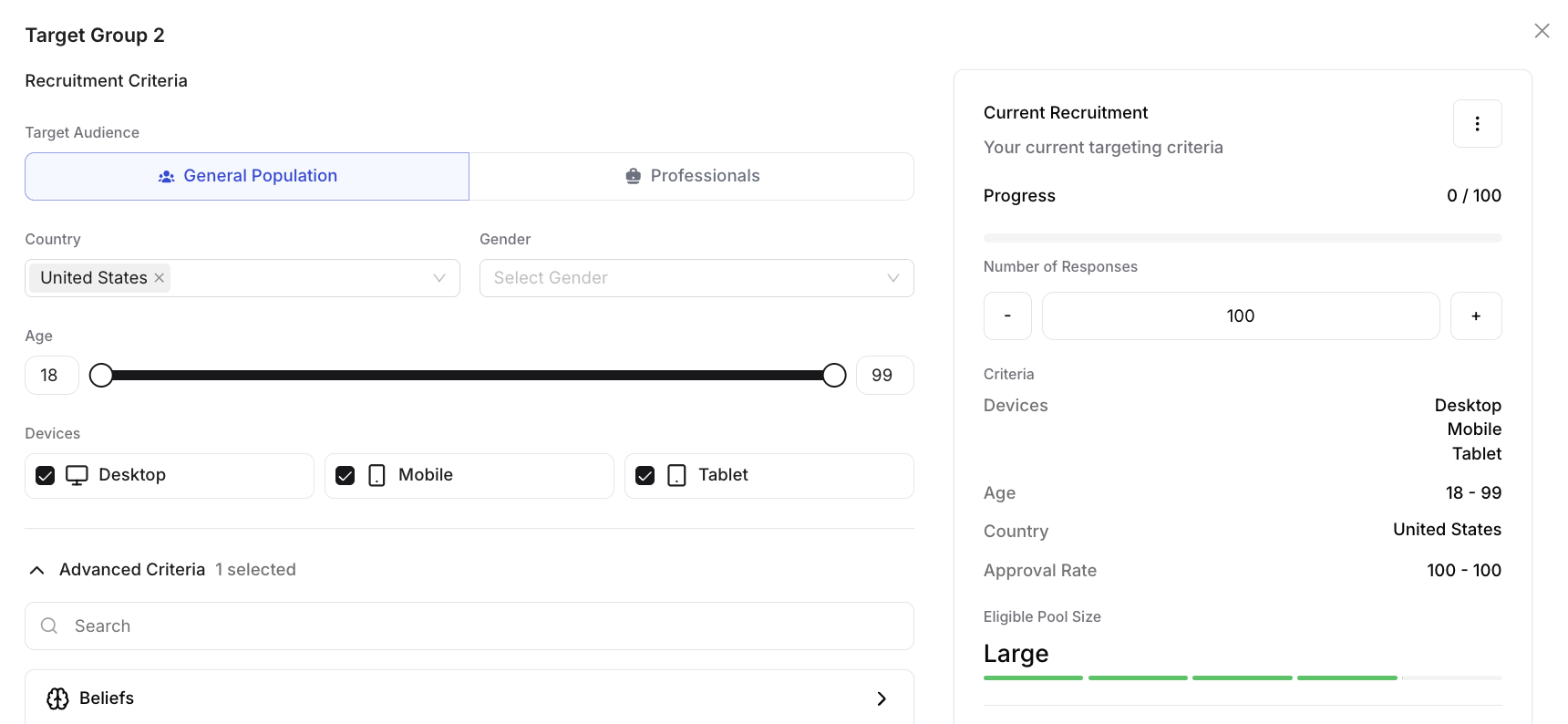
Listen connects to a network of 30M+ verified global respondents across 45+ countries and 100+ languages from top-tier white-label qualitative panels. Define your target audience in the Launch tab, and we’ll find and qualify matching participants automatically.
Bring Your Own Participants
If you have an existing customer list, community, or employee panel, distribute your study via Direct Link. Participants click your link, complete the study, and their responses are collected automatically.
- You control outreach and incentives
- Listen handles the interview and analysis
- Use URL parameters to track individual participants (see the URL Parameters article)
Mixed Recruitment
Run multiple recruit groups within a single study — for example, one from Listen’s panel and one from your own customer list. This is ideal for multi-market studies or when comparing internal and external audiences.
Defining Your Target Audience
- Demographics: Age, gender, household income, employment status.
- Geography: Country, region, or city.
- Professional attributes: Job title, seniority, industry, company size (Professionals panel).
- Behavioral targeting: Handled via screener questions inside your study.
General Population vs. Professionals Panel
General Population Panel
The General Population (B2C) panel is Listen’s default. Use it for:- Studies targeting everyday consumers based on behavior, demographics, or category usage
- Research into personal or household purchasing decisions
- Creative testing, brand perception, and consumer UX
- Studies that need scale and speed — general population fills faster
Professionals Panel
Use the Professionals panel when your audience is defined by their professional context. Ideal for:- B2B research targeting specific job functions or industries
- Studies on business software, enterprise tools, or workplace decisions
- Healthcare professional research (physicians, nurses, pharmacists)
- Studies requiring decision-maker access (C-suite, budget holders)
Considerations
- Higher cost per complete reflects premium on professional audiences
- Slower fielding for very niche targets
Setting a Response Limit & Quotas
Set a Response Limit before launch — the maximum number of completes you want to collect. Required if you’re using quotas. Once the limit is reached, the study closes automatically. You can use the response limit to run a soft launch of your survey. For example, if your target N=100, then you can set your response limit to N=10, and your recruitment will automatically pause. Then you can analyze your responses and make any adjustments to your guide. Quotas control the demographic or behavioral composition of your respondent pool. See the Recruitment Quotas article for full setup instructions.Launching
- Review your targeting settings and response limit.
- Click Launch at the top right of the Launch tab.
- Your study is live and begins collecting responses immediately.
Monitoring Responses
- Watch responses arrive in real time in the Responses tab
- Click into any response to view the full transcript and video
- Export responses at any time to CSV, Excel, or Google Sheets
- Filter by theme, screener answer, or keyword
Need help with recruitment strategy? Email support@listenlabs.ai.