

Note: This article is geared towards studies that are being manually distributed your own contact lists (e.g., self-recruited participants).
You do not need to interface with URL parameters if you’re recruiting your study participants through Listen.
You do not need to interface with URL parameters if you’re recruiting your study participants through Listen.
What are URL parameters?
URL parameters are additional pieces of information included at the end of a URL. For example: the URL “https://example.com/page?id=123&lang=en” includes two URL parameters: “id” (set to “123”) and “lang” (set to “en”). These pieces of information are useful when redirecting between websites, because they can be accessed by the website that is being redirected to. In this case, “example.com” would be able to read and react to these ID and language values.URL parameters in Listen
Here’s a broad overview of how URL parameters work in Listen:- Incoming Redirects When a study participant clicks on a Listen URL, all of the URL parameters are automatically collected and stored in the response data. For example: if a participant is redirected to Listen via “https://listenlabs.ai/s/example?id=123&survey=external”, the “id” and “survey” parameters and their values (”123” and “external”) will be automatically collected and stored.
-
Manually Adding
If you want URL parameters to be displayed in their own column on the Responses page, you can manually add them. If you don’t add them manually, they will still be displayed in a respondent’s transcript, just not as their own column in the Responses table.
- Navigate to the “Create” page in Listen, and, switch to the “Config” tab.
- Add a URL parameter by clicking “Add another URL parameter” and entering the name of the parameter.
-
Outgoing Redirects
At the end of a Listen interview, you can choose to redirect participants to an external URL. You can also opt to automatically add any incoming URL parameters (see above) to this URL to pass that information back to the redirect.
-
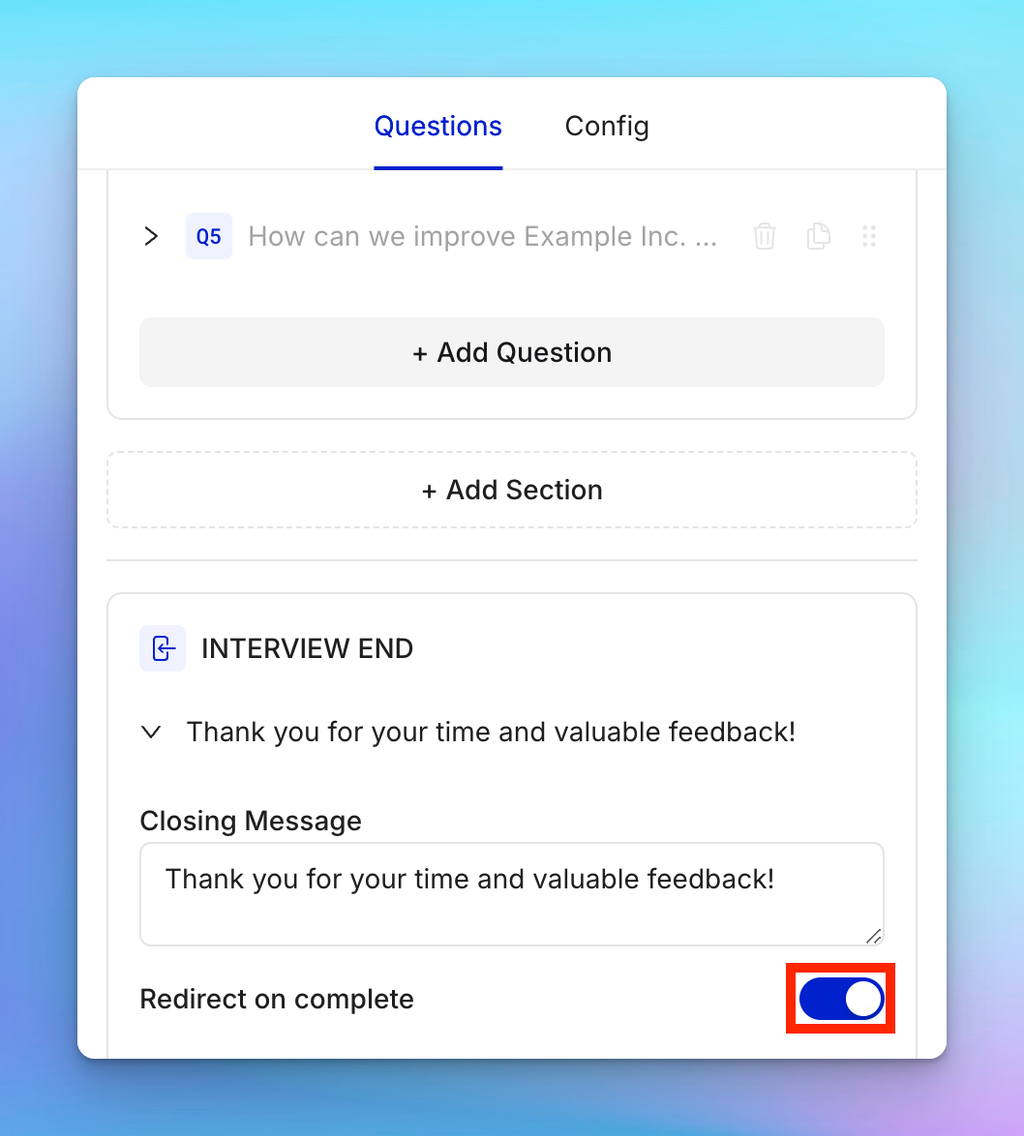
Navigate to the Edit tab on the Create page within your Listen study. Below your Questions, in the “Interview End” section, activate the “Redirect on Complete” switch.
-
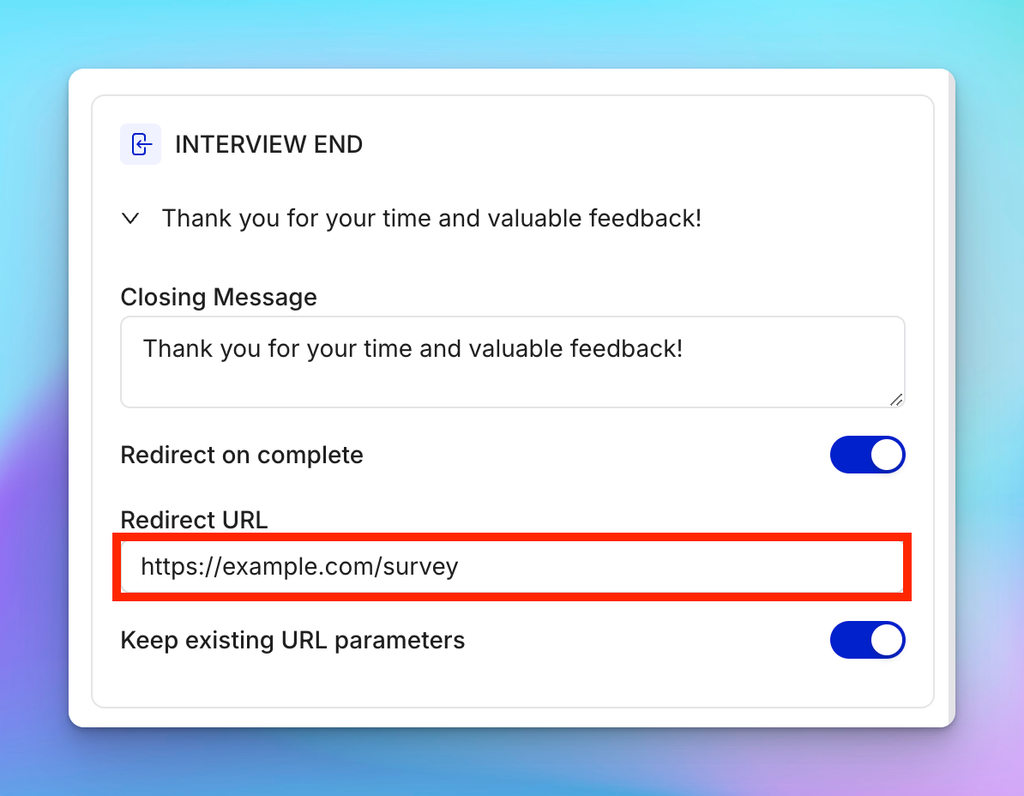
In the Redirect URL field, paste the URL that participants will be redirected to.
Note: you can also add additional URL parameters at the end of your Redirect URL. For example: both ”https://example.com?s=123” and “https://example.com?s=” are valid Redirect URLs, provided has been manually added via the above steps.
-
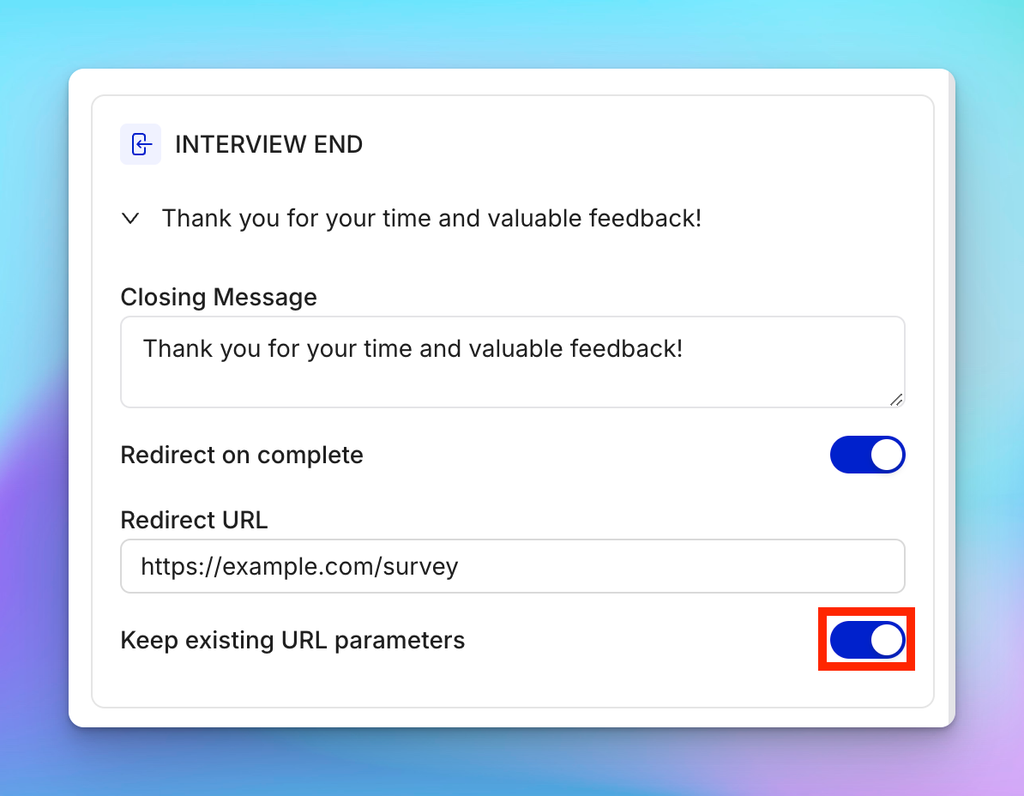
If the “Keep existing URL parameters” switch is activated, Listen will automatically ingest any URL parameters from an incoming redirect and include those as part of your Redirect URL.
Note: the Redirect URL will still work if you include URL parameters with it. Any new parameters you add to the URL will still be included, and any duplicates will be ignored.
-
Navigate to the Edit tab on the Create page within your Listen study. Below your Questions, in the “Interview End” section, activate the “Redirect on Complete” switch.
Common Use Cases for URL parameters
Now that we know how they work, let’s discuss some of the key use cases for URL parameters in Listen.Tracking Individual Study Participants
You can use URL parameters to keep track of different individuals or groups within your set of study participants to confirm completion and/or pay out incentives.-
Add the URL parameter
Go to your Study Settings (wrench icon on the left side of the Edit tab) and add a parameter name—e.g.,id.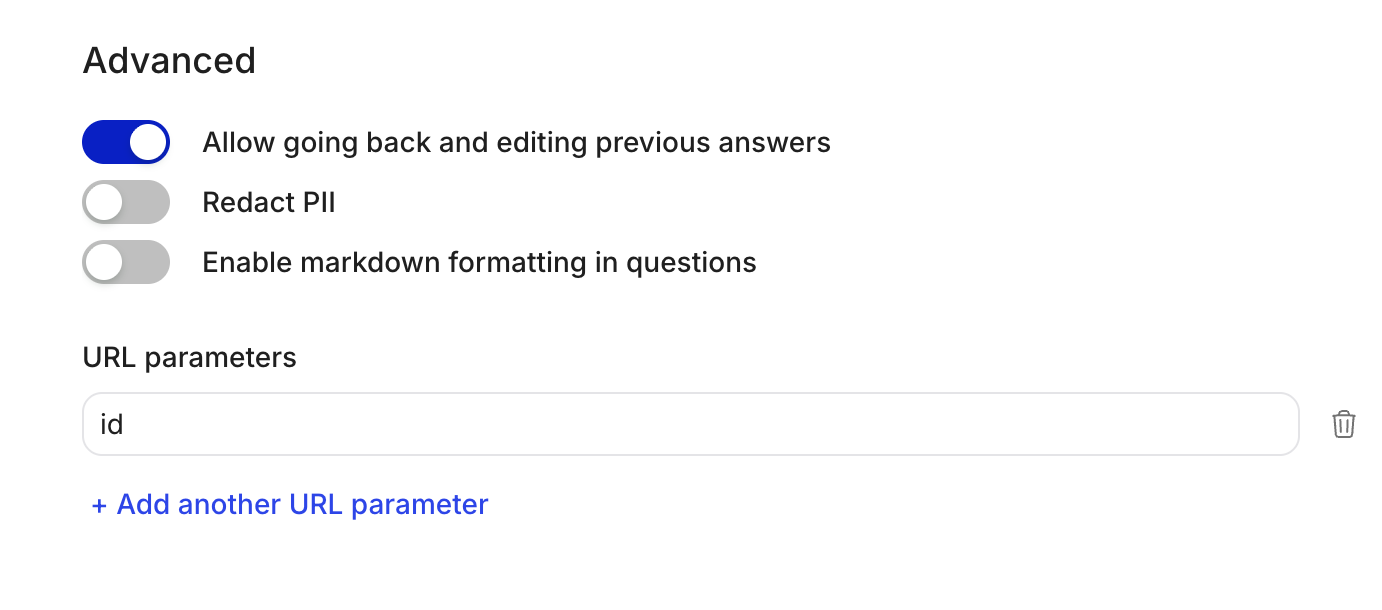
-
Create unique participant links
Append the parameter and value to your study URL:
- Replace
[uniqueID]with a unique value for each participant (e.g., their email, panel ID, or contact list ID).
-
Track completions
When participants open their personalized link, Listen automatically captures and stores the ID value. You can then match these IDs against your contact list—commonly used to confirm completion or distribute incentives. -
Connect external data (optional)
You can upload a.csvfile with matching ID values at the bottom of your Details page in Listen Labs to link participant-level data such as demographics, purchase behavior, or CRM fields.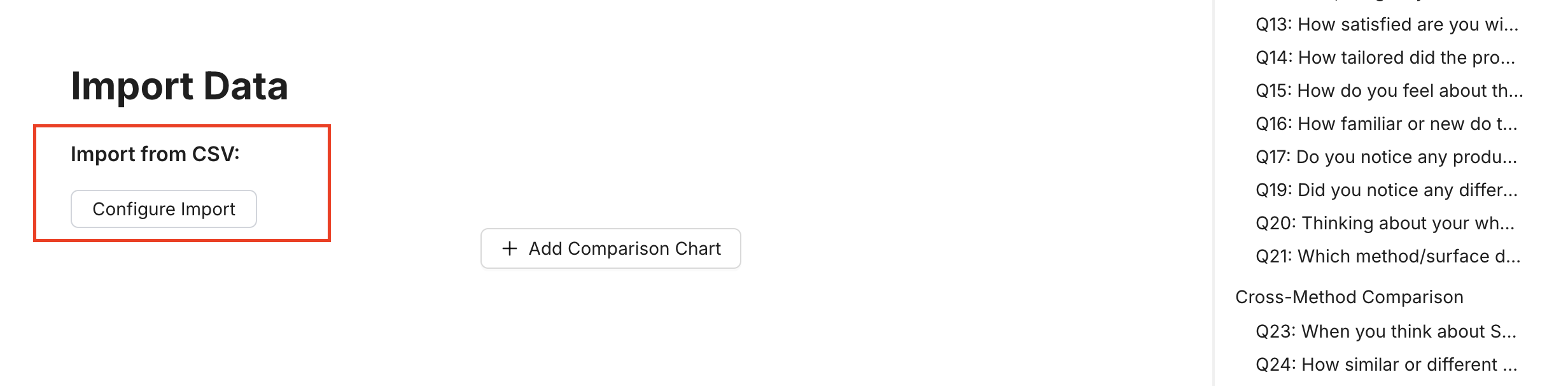
Tracking Groups of Participants
To track groups (e.g., by market, customer segment, or recruitment source), use a group parameter instead of an individual ID. For example:Modifying Questions
-
You can use URL parameters to modify the content of your survey.
-
Your study questions can be filled with the values of URL parameters.
For example, if your Participant Link is “https://listenlabs.ai/s/xxx123?productName=Example%20Product”, the question text “Why did you stop using ‘productName’ will be displayed as “Why did you stop using Example Product?”
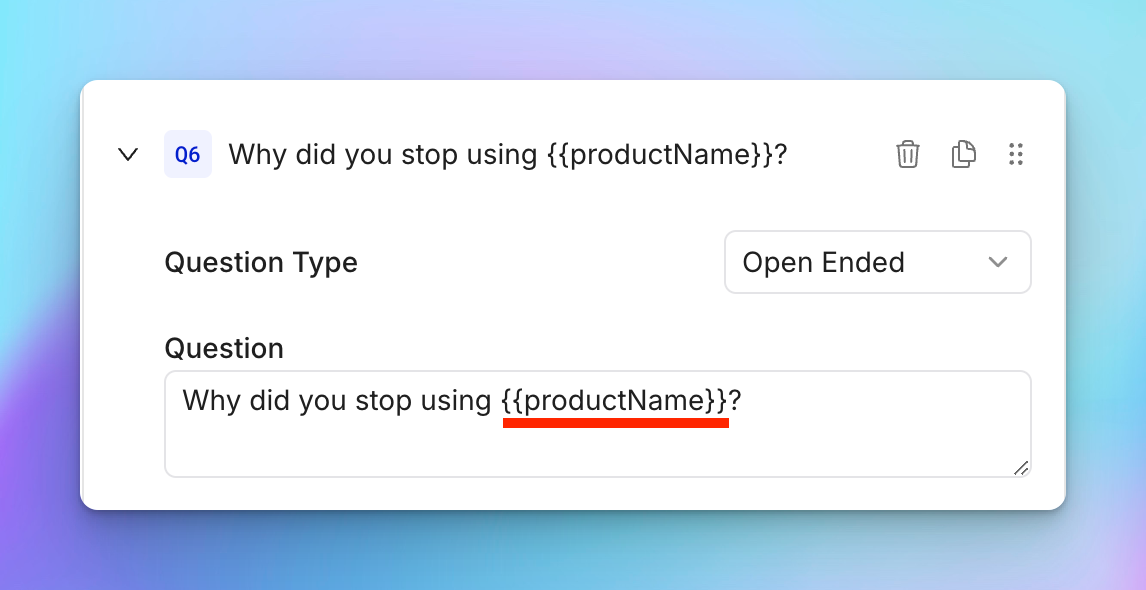
- The same formatting can be used to display URL parameter values in Config fields such as “Background Info and Q&A” to provide more context to the AI.
-
You can also use URL parameters to configure conditional display logic on certain questions, keeping questions relevant to specific groups.
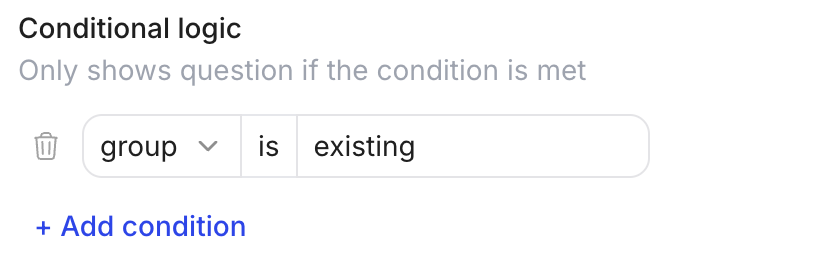
-
Your study questions can be filled with the values of URL parameters.
For example, if your Participant Link is “https://listenlabs.ai/s/xxx123?productName=Example%20Product”, the question text “Why did you stop using ‘productName’ will be displayed as “Why did you stop using Example Product?”
-
Integrating With Third-Party Tools
You can use URL parameters to redirect study participants between Listen and third-party tools. This can be useful if you want to collect data across multiple research tools for the same group of participants.
- Typically this involves redirecting a participant from the third-party tool to Listen and then back to the third-party tool. Any incoming URL parameters from the third-party tool (such as the participant ID) will automatically be preserved and included in your Redirect Link at the end of your Listen survey (see “Outgoing Redirects”).
- We also provide in-depth integration guides for common third-party tools: