

How It Works
Example Inc. wants to compare three different video ads for an upcoming marketing campaign. Here’s how they could use Concept Testing to find out which ad will perform better:- Create three Concepts, each with a different video ad.
- Write questions for study participants to answer in response to the video ad.
- When the study is sent out, each participant responds to one or more randomly selected video ads.
- Easily analyze the results for each question across all ad versions to get an in-depth understanding of the performance of each ad.
Enabling Concept Testing
- Navigate to Section Settings
-
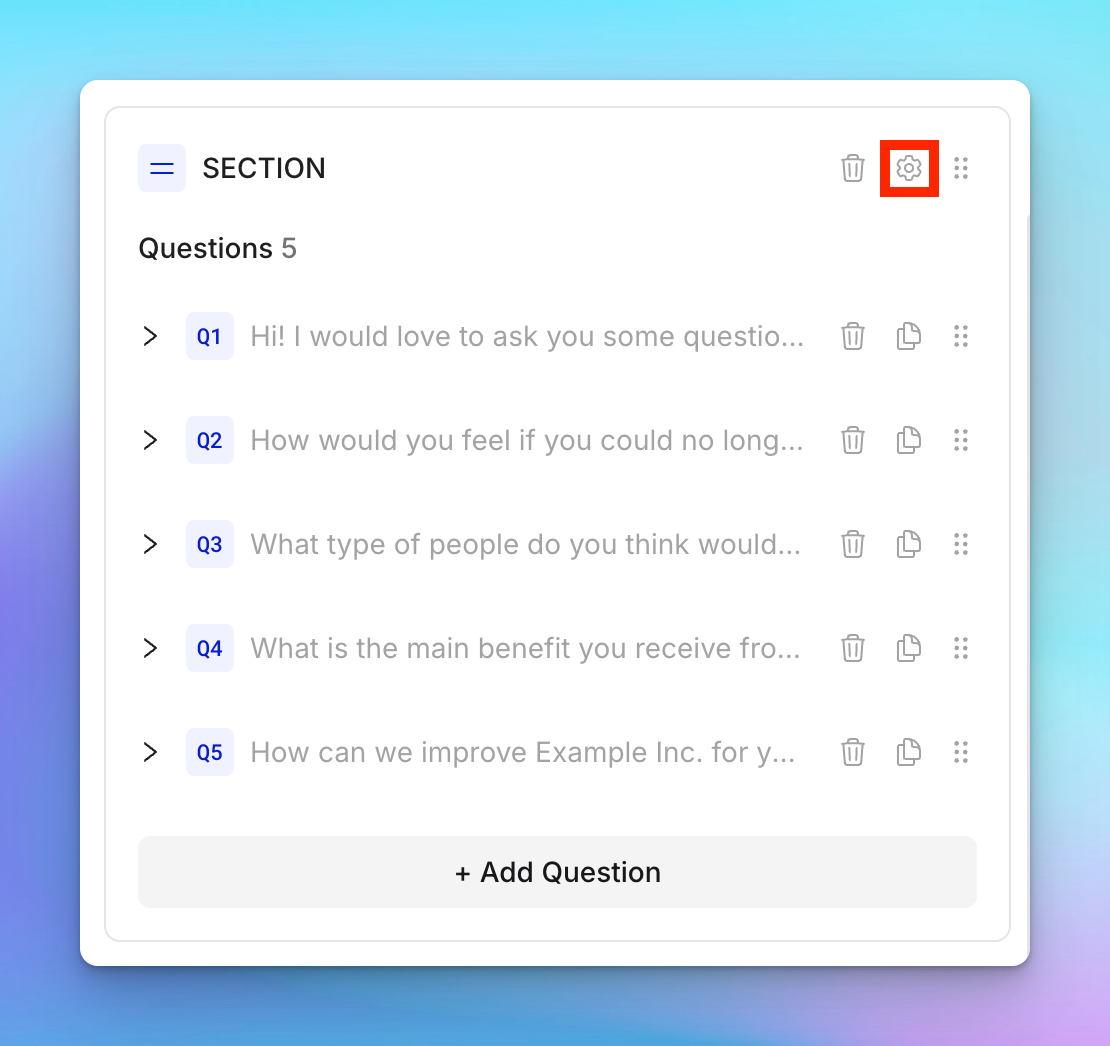
Navigate back to the “Questions” tab. Click the gear icon on a Section to open Section Settings.
-
Navigate back to the “Questions” tab. Click the gear icon on a Section to open Section Settings.
- Convert Section to Concept Test
-
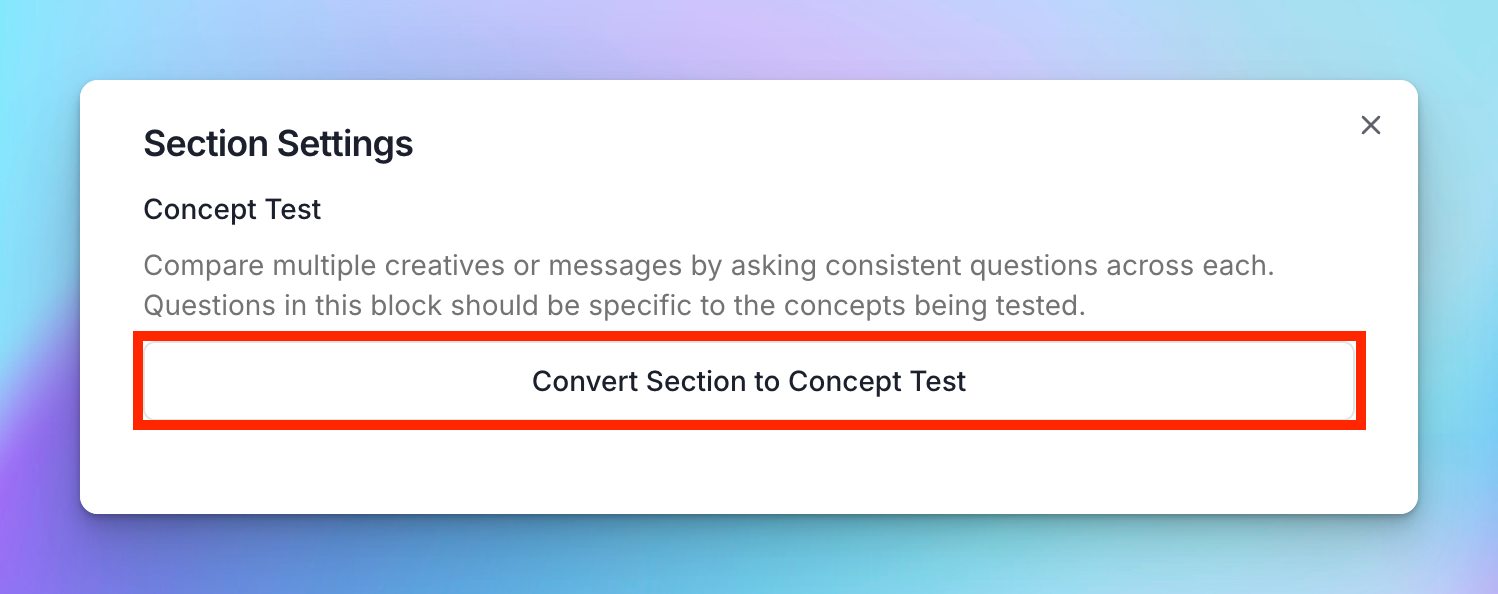
Select the option to “Convert Section to Concept Test.” This will convert the Section to a Concept Test and create your first Concept.
-
Select the option to “Convert Section to Concept Test.” This will convert the Section to a Concept Test and create your first Concept.
Creating and Editing Concepts
Each Concept should be a creative or message that you want to test with your study participants.- Add Concepts
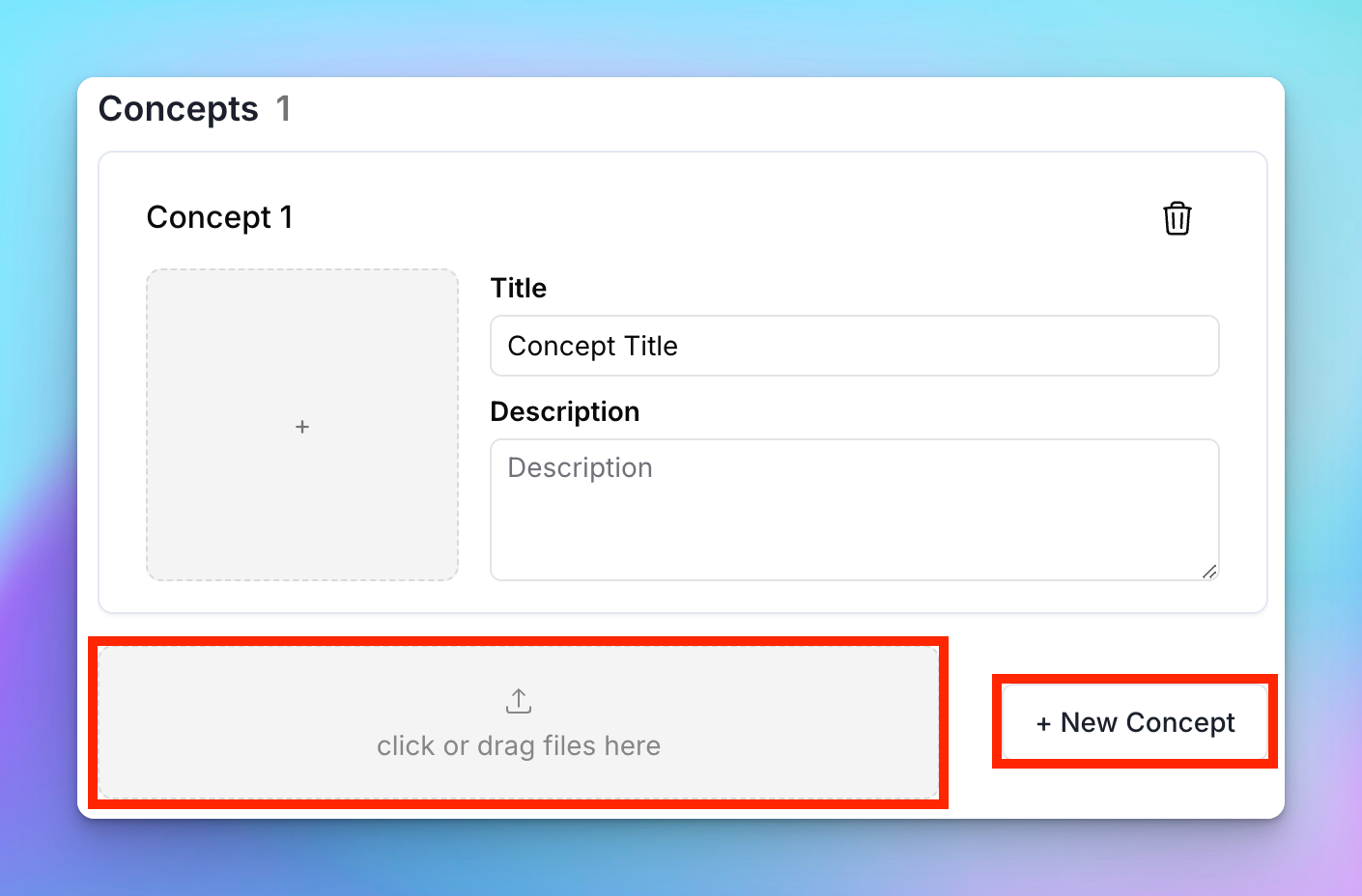
- Click “New Concept” to add a new concept.
-
Alternatively: to auto-generate concepts based on media files, click or drag files into the file upload box to the left of the “New Concept” button.
- Edit Concepts
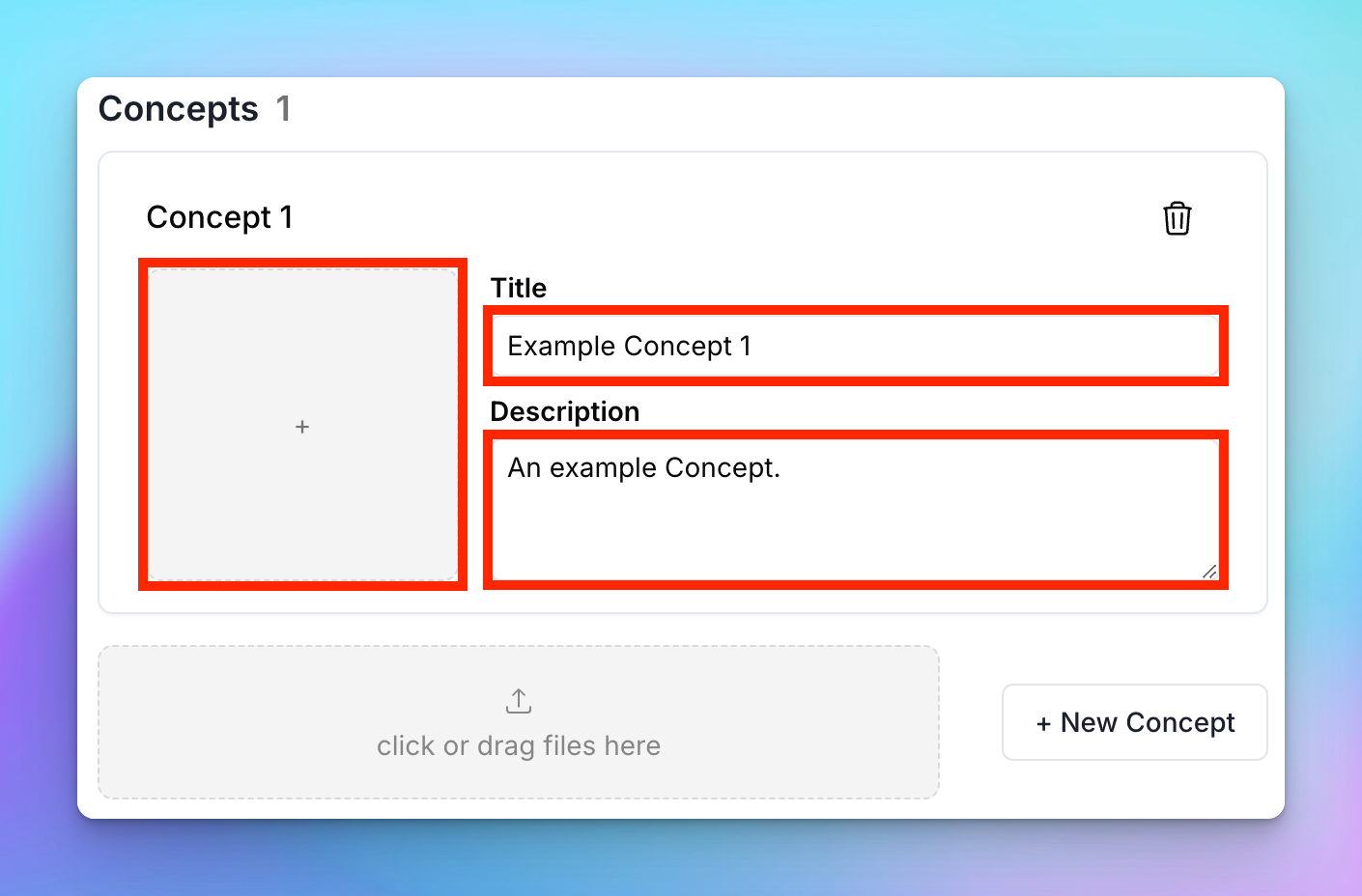
- Edit the title and description of a Concept via the text boxes.
-
Add media (images, videos, URL embeds) to a Concept by clicking the upload box marked “+”.
- Configure Concept Selection
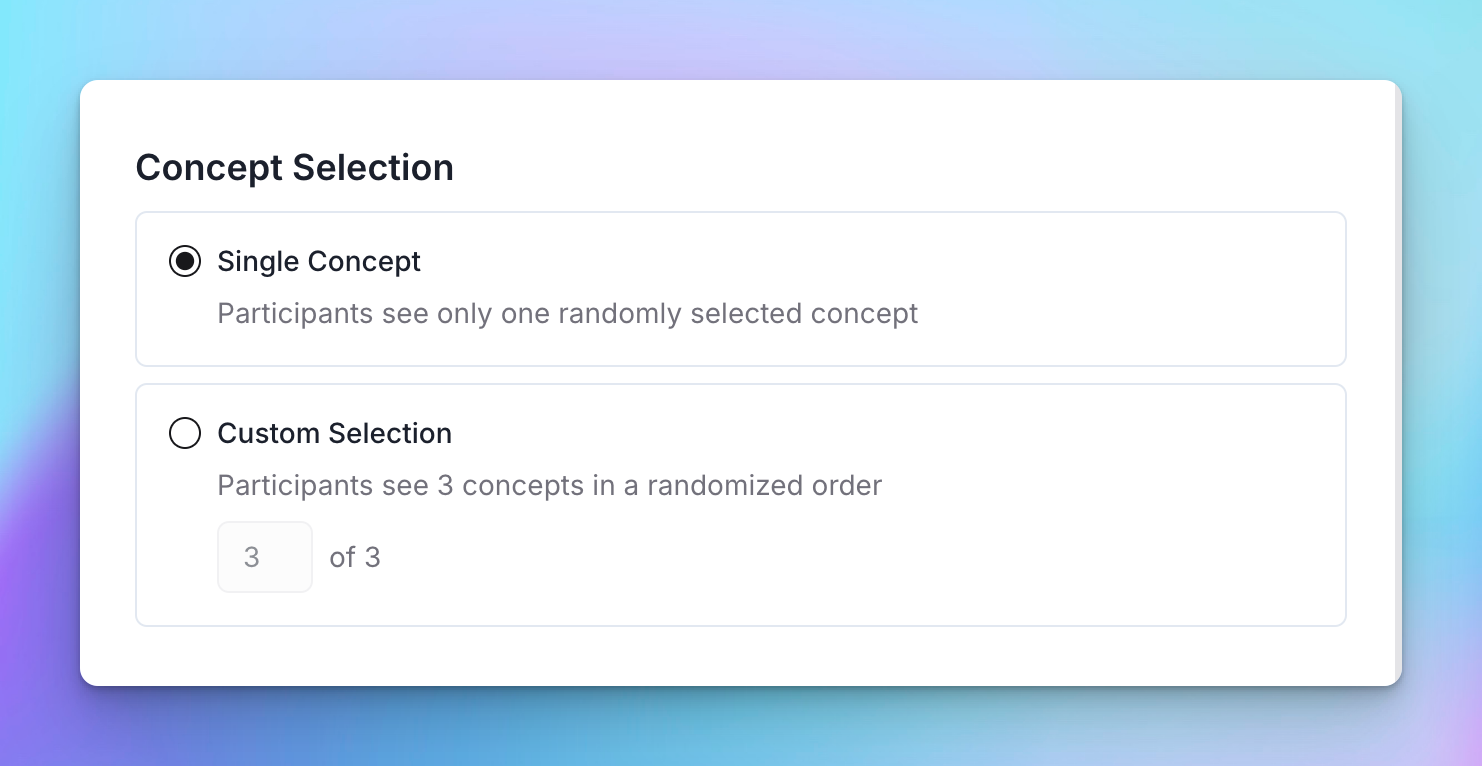
- You can choose how the Concepts will be shown to participants in the “Concept Selection” section.
- Single Concept: Participants will respond to one randomly selected Concept.
-
Custom Selection: Participants will respond to multiple Concepts in a randomized order. The questions in this Section will be repeated for each Concept that is shown
- Exit Settings
- Exit the Concept Test Settings by clicking the “X” in the top right corner.
Using Concepts in Questions
The Concepts you just created will apply to the Section you added them to, so the questions in this Section should be specific to the Concepts being tested.- Dynamic Placeholders
-
Use
{{concept.title}}and{{concept.description}}in your question text in order to dynamically reference whatever Concept is being shown to the participant.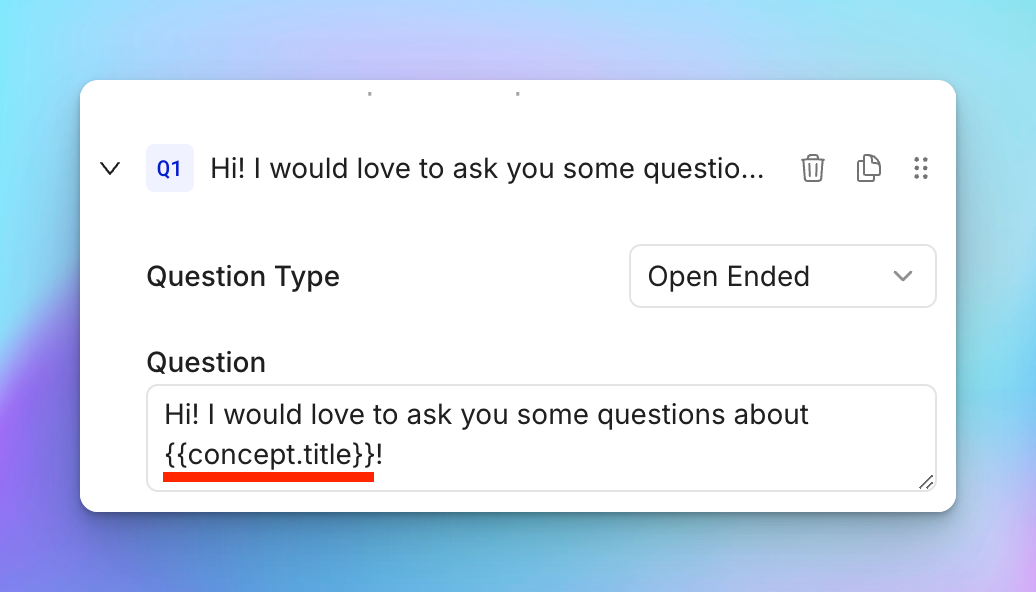
-
Use
- Display Concept Media
-
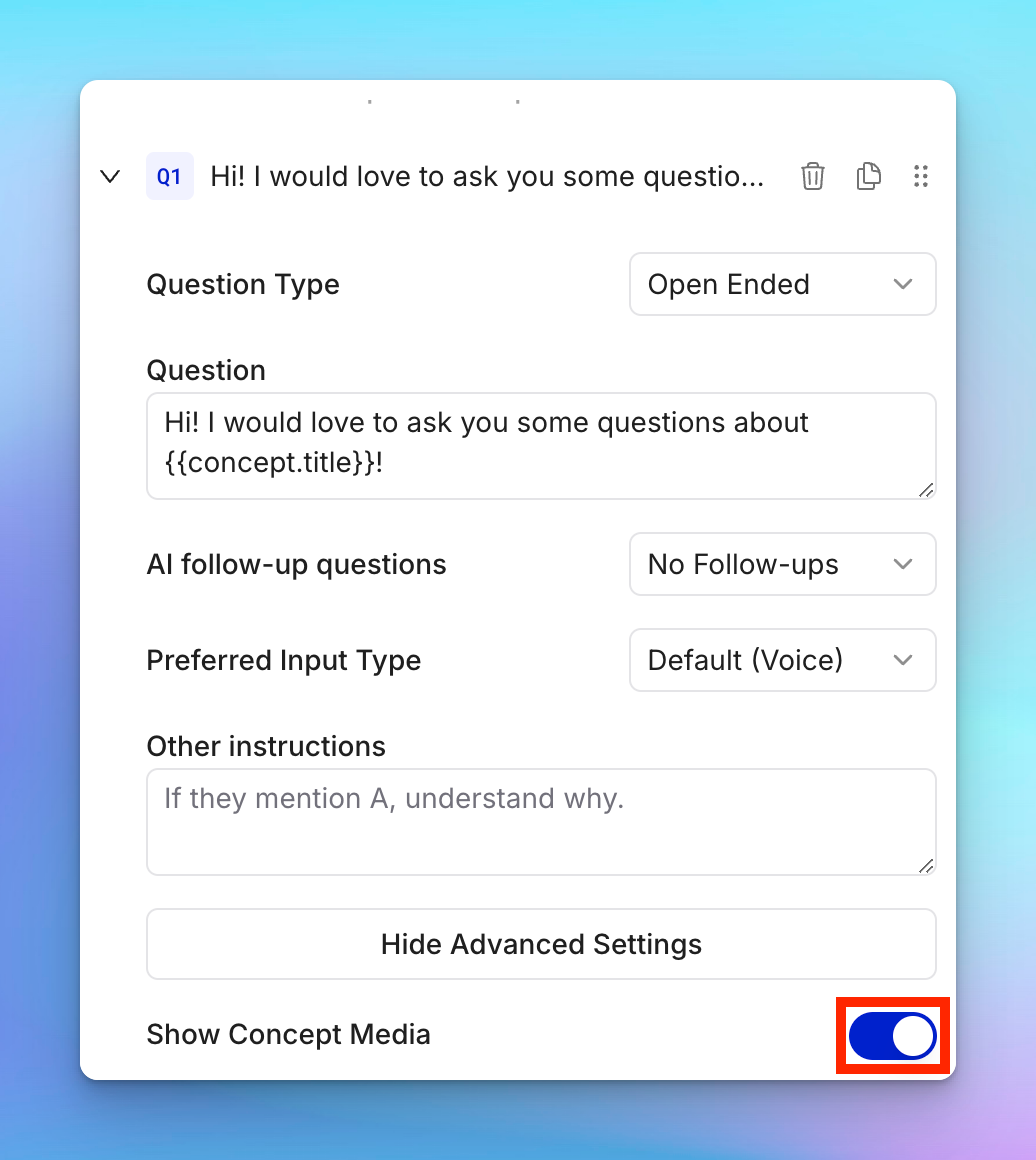
Click “Show Advanced Settings” and then activate the “Show Concept Media” switch in order to display the media from the current Concept for the participant to respond to.
-
Click “Show Advanced Settings” and then activate the “Show Concept Media” switch in order to display the media from the current Concept for the participant to respond to.
- Preview Concepts
-
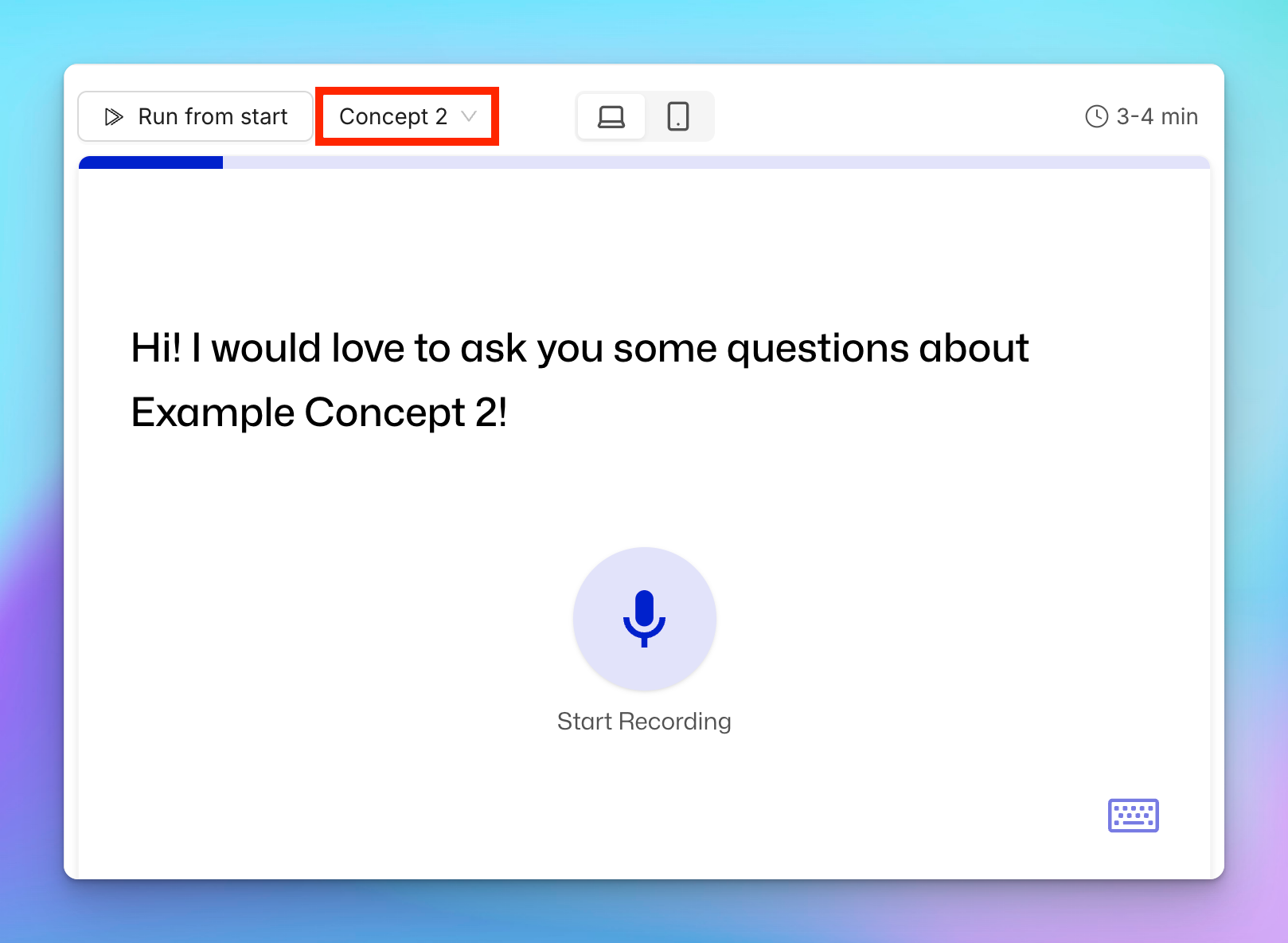
Use the dropdown menu over the preview window to select a Concept to preview. This lets you see exactly what participants will experience when responding to that concept.
-
Use the dropdown menu over the preview window to select a Concept to preview. This lets you see exactly what participants will experience when responding to that concept.
Anything missing? Let us know at support@listenlabs.ai and we’ll help you out!