

Looking to have interview questions read aloud in participants’ language? See Multilingual Voice Interviewer for audio support across 40+ languages
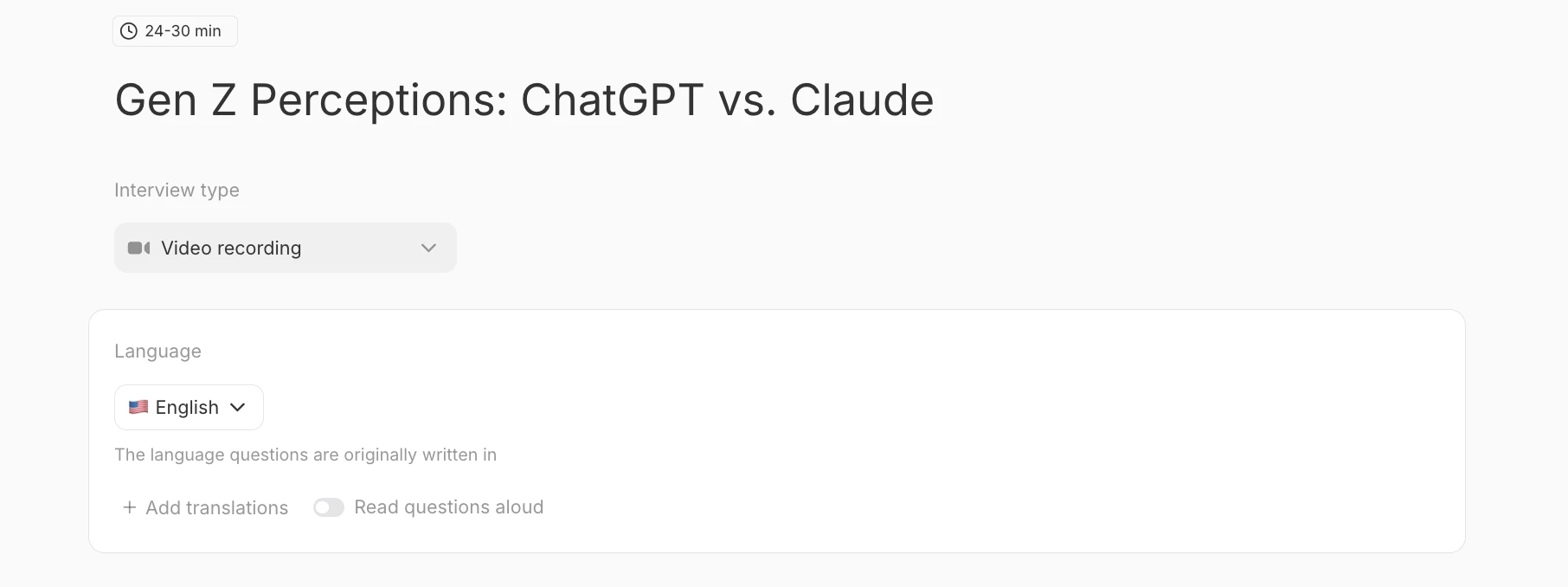
Configure Your Study Lanaguage
Your Study Language determines:- The language you write your study in
- The language your analysis report will be generated in
Turning On Translations
To make your study available in multiple languages: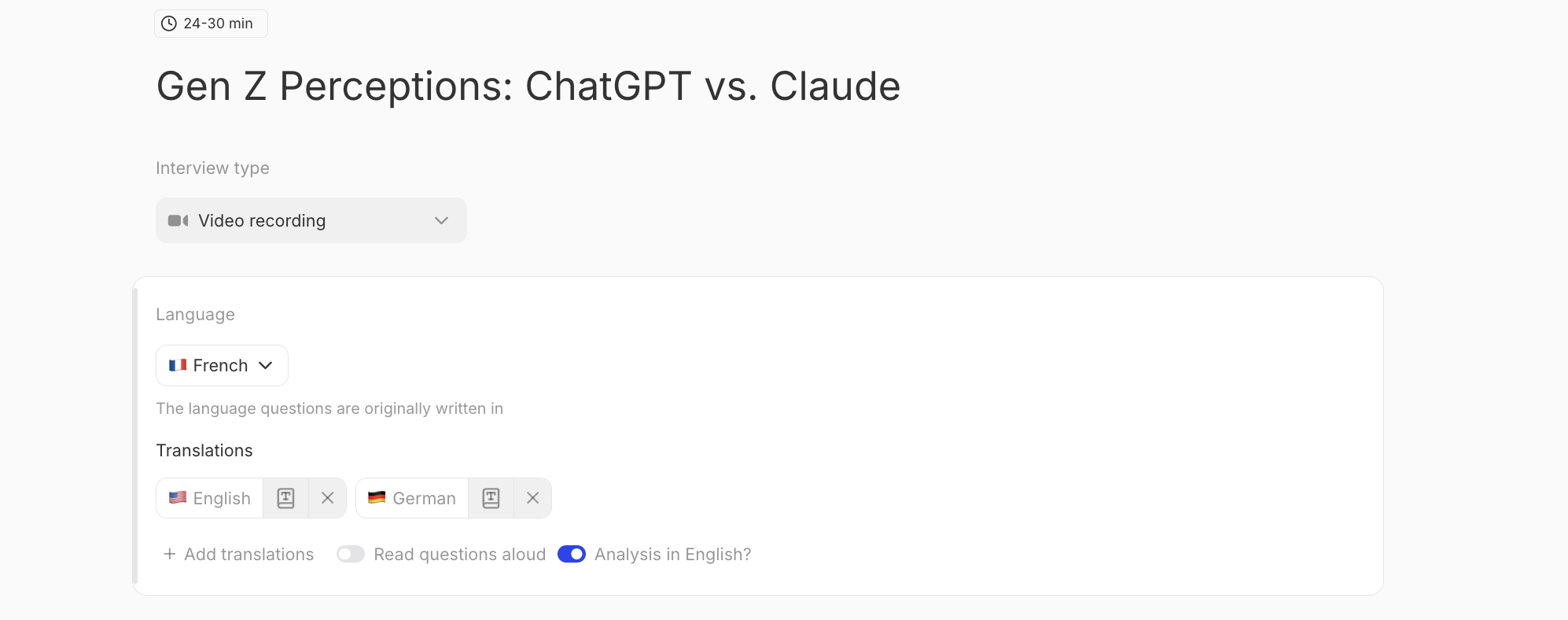
- In this same “Language” section, click the ”+ Add Translations” and select from the drop down. Find the complete list of available languages here.
- Toggle on Read Questions Aloud if you would like the interviewer to read the questions in the respective language.
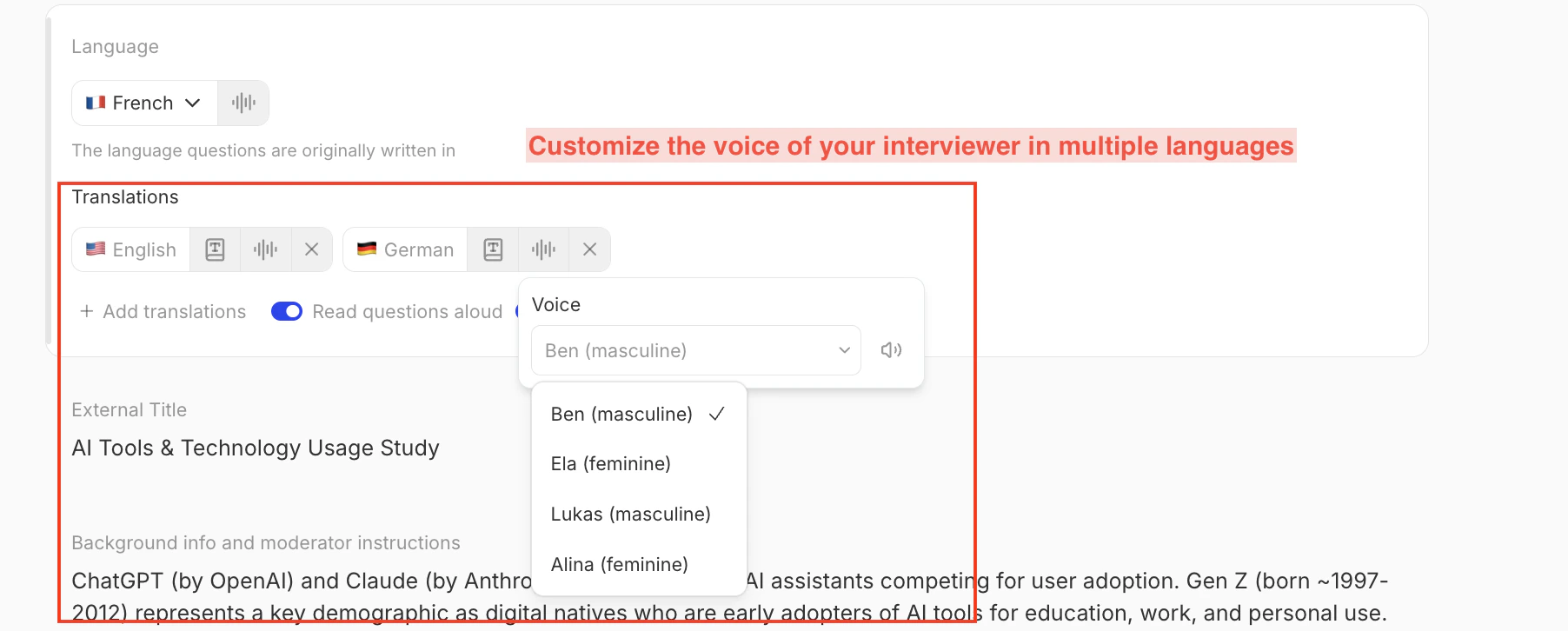
- You can customize the voice of your interviewer across multiple languages
- Participants will automatically see your study in their browser’s default language (if available).
- If their browser language isn’t supported, they’ll see the study language instead.
Reviewing and Editing Translations
You have two ways to review translated content:- Preview in Platform: In the Discussion Guide view click the language icon in the upper-right corner to update the guide to be available in the respective languages.
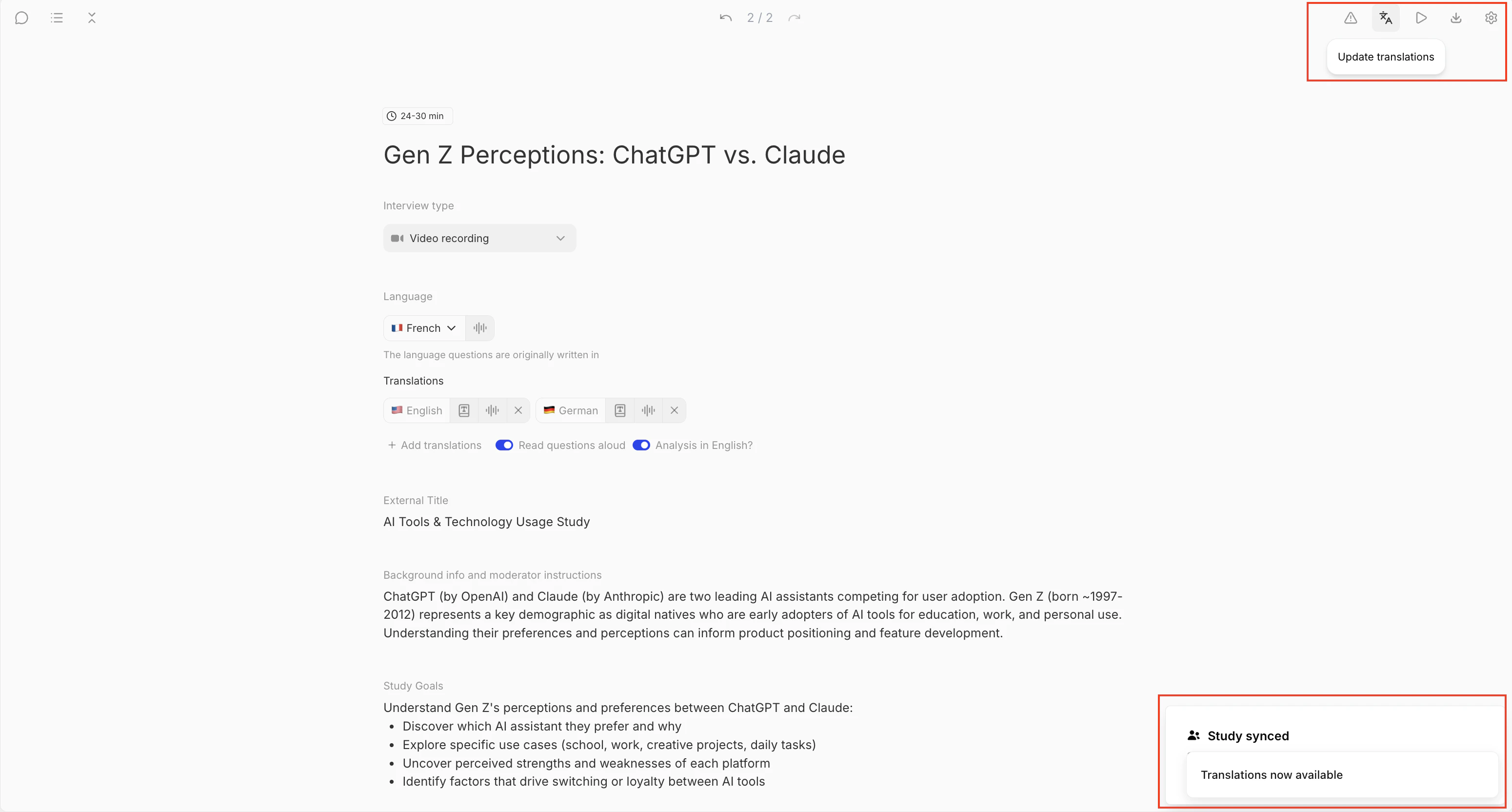
- Export for Review: In the same upper right hand corne you can export a .csv or Word document of your discussion guide in each language for translation review or external proofreading.

Analyzing Results Across Languages
When a participant completes your study in another language, their responses and transcripts are automatically translated back into your Study Language for analysis. This process happens instantly — no need to wait for manual translation or export files. That means:- You’ll see all individual responses in your Study Language (e.g., English) by default.
- Your Reports, Responses Table, Details, Chat responses, Charts, and other key insights will show in your Study Language.
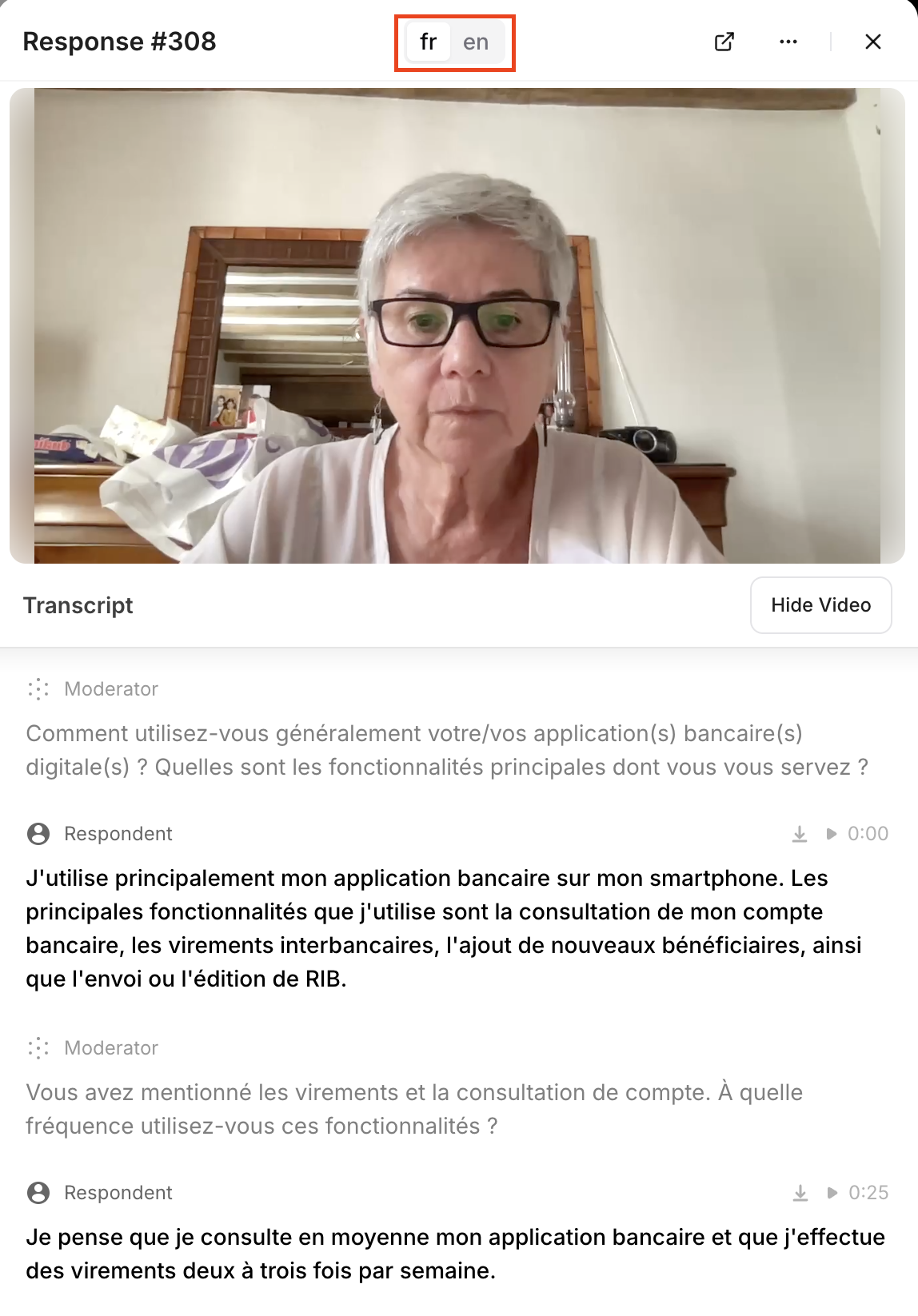
- The original-language transcript is also stored— you can toggle between native language and Study Language in a participant’s transcript window, or export them from the Responses tab.
FAQs
Which languages does Listen Labs support? Listen Labs currently supports translations across ~100 languages. You’ll find the current list in your Study Settings → Translations Can I edit the translations or upload my own? Yes. Use the Translation Guidance field under Settings → Translations to specify preferred terms or paste an entire translated guide. The AI will apply your custom text instead of generating a translation.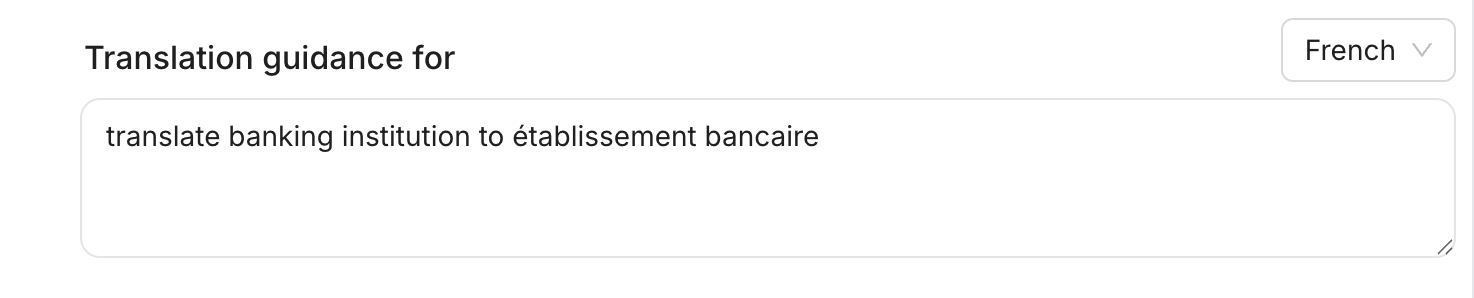
lang= URL parameter, then send the specific links to the appropriate regions.
For example, to default a study to Japanese, you would send this link:
Have any questions? Reach out to support@listenlabs.ai