

What Is Screensharing in Listen?
When screensharing is enabled, participants are asked for permission to share their screen (or turn on video) at the start of each session. This creates a synchronized recording of their screen activity alongside the audio/video interview — so you can watch exactly where they click, hesitate, scroll, or get confused.Desktop Screen Sharing
Desktop screensharing works through the participant’s browser. When they open the study link on a desktop device, they’ll see a browser-native screen-sharing prompt.Setting Up Desktop Screensharing
- Open your study in the Editor.
- Click the settings icon (wrench) in the left sidebar to open Project Settings.
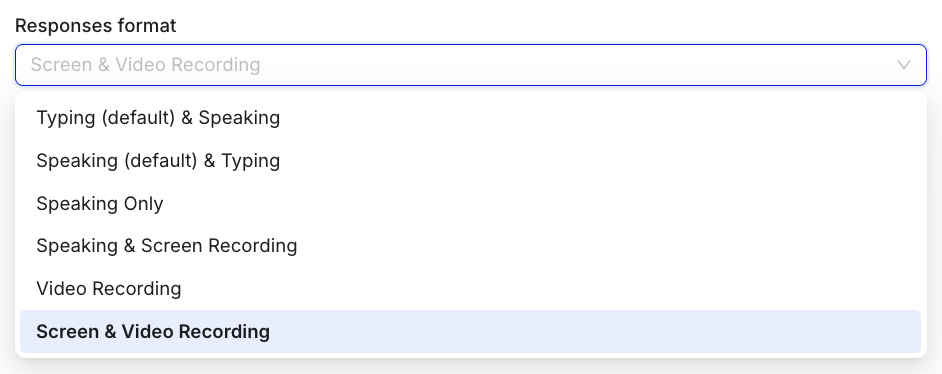
- Under Responses Format, select Screen & Video Recording.
- Save and proceed to launch.
Mobile Screen Recording (iOS)
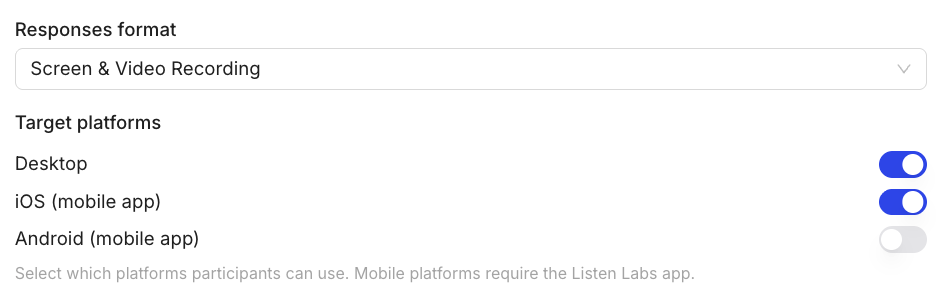
Mobile Screen Recording is Listen’s most requested feature — and it’s now live. Participants join via the Listen iOS app by opening their study link on their phone or scanning a QR code.What You Can Capture on Mobile
- Full native iOS app interactions, including app-switching and multitasking
- Real user journeys across multiple apps — not just yours
- Exact moments of friction and drop-off in the mobile experience
- Screen activity synchronized with the participant’s verbal narration
How Participants Join Mobile Sessions
- The participant receives their study link.
- They open the link on their iPhone — this prompts them to download the Listen iOS app if not already installed.
- They open the study inside the app, which handles screen recording permissions.
- The interview runs inside the app, with screen recording capturing all activity.
Reviewing Screensharing Data
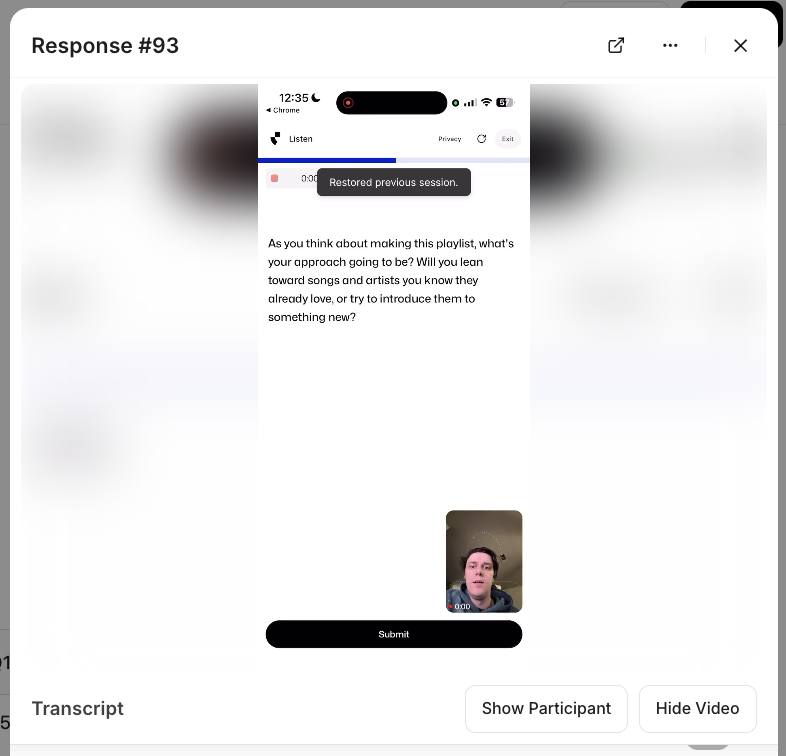
Screen recordings appear alongside the standard video/audio in each participant’s response. In the Analysis tab:- Click into any response to watch the synchronized screen recording + interview.
- You can also toggle between the screenshare view and participant video.
- Screensharing clips can be included in highlight reels — contact support to enable.
- Look for hesitation, backtracking, and confusion in the recording — these often surface issues participants wouldn’t volunteer verbally.
Questions about screensharing setup? Email support@listenlabs.ai