

Seat Types & Permissions
Organization Roles
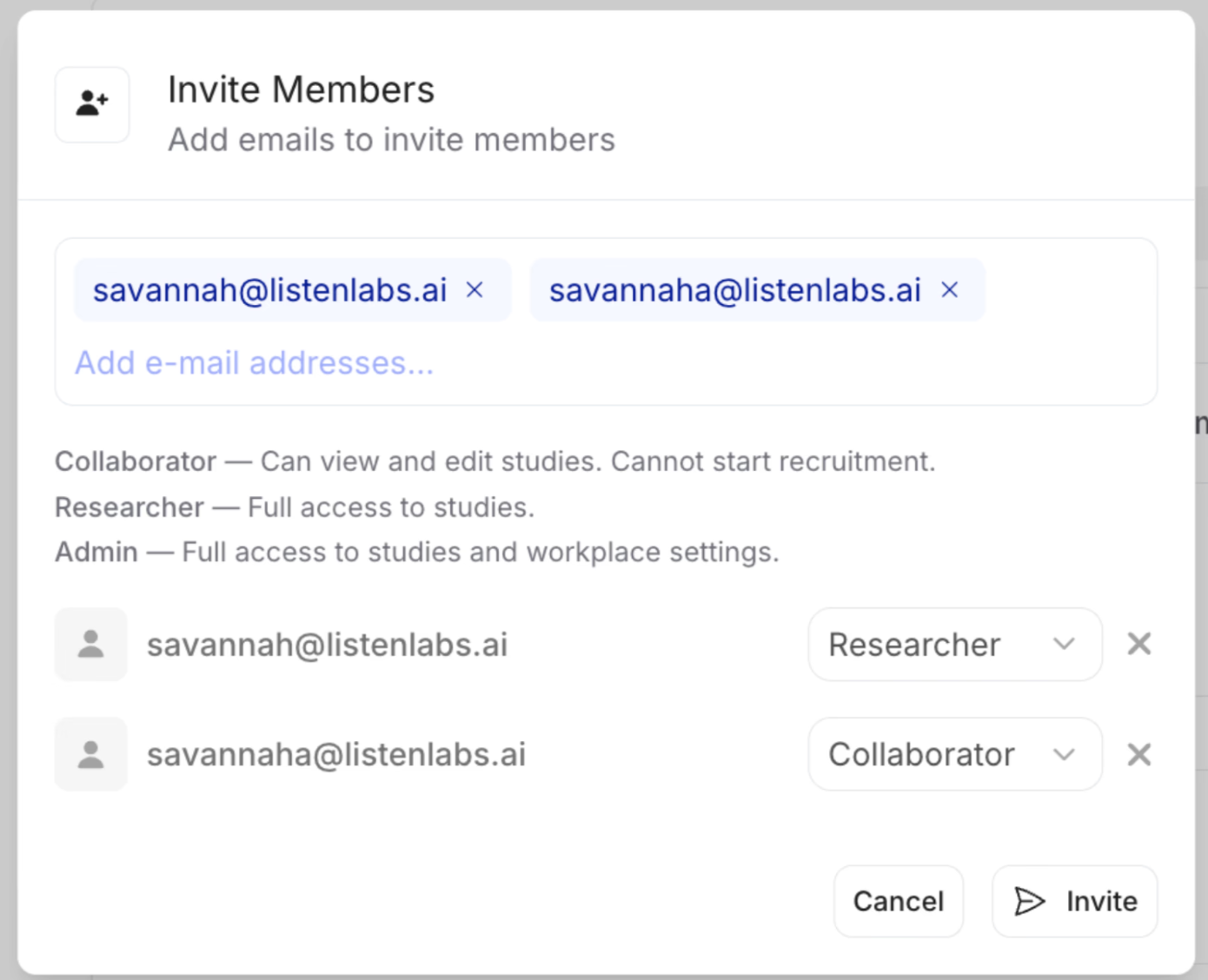
- Admin: Full control over the organization — all studies, billing, workspace settings, and user management.
- Researcher: Can create and launch studies. The standard role for anyone actively running research.
- Collaborator: Can create and edit studies but cannot launch them. Great for team members who need review before going live.
Team Roles
- Manager: Can admit new members to the team for a specific study.
- Researcher (team): Can edit and view all studies shared with that team.
Automatic Permissions
- Organization Admins automatically get full access to all studies in the workspace.
- Study creators always have full access to their own studies, regardless of team role.
Inviting Team Members
- From your dashboard, click Workspace in the left navigation.
- Select Team Members.
- Click Invite Member and enter their email address.
- Assign the appropriate role (Admin, Researcher, or Collaborator).
- The invitee will receive an email with a link to join the workspace.
Invites expire after 7 days. If a team member hasn’t accepted, resend from the Team Members page.
Anything missing? Let us know at support@listenlabs.ai and we’ll help you out!